
 EN
EN
 US Virgin Island
 Puerto Rico



-
MOBILE AND ONLINE BANKING



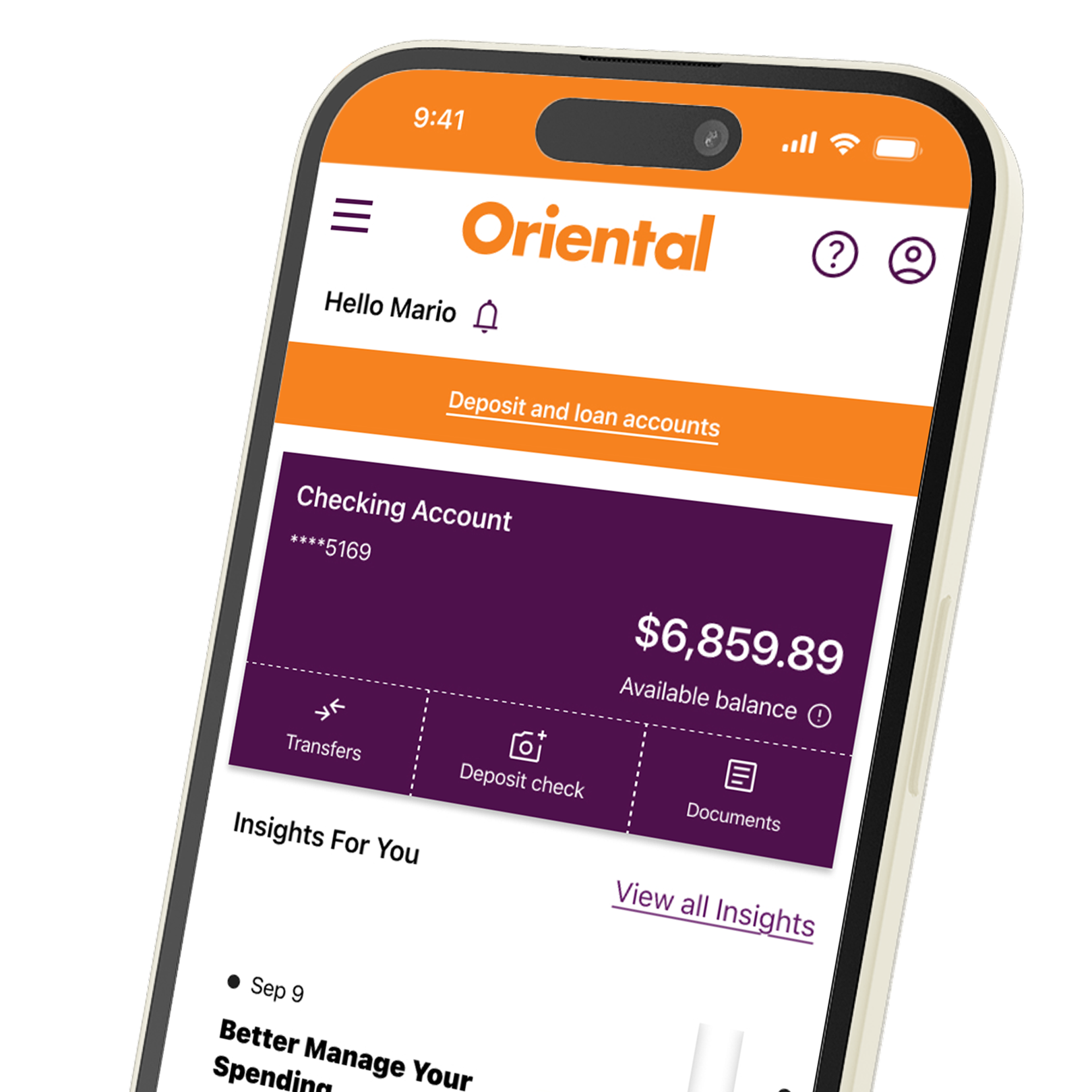



- Access the app
- Manage your accounts
- Make payments
- Transfers
- Alerts, notifications and more
Create your username
- Must be a minimum of 8 characters and a maximum of 15 characters.
- Must contain at least 2 letters and 2 numbers.
- It cannot contain the special characters = ? &.
Create your password
- The password must have a minimum of 8 characters and a maximum of 15 characters.
- The password must contain at least 1 letter, 1 number and one of the following special characters \, <, >, `.
- Characters cannot be repeated more than 1 time consecutively.
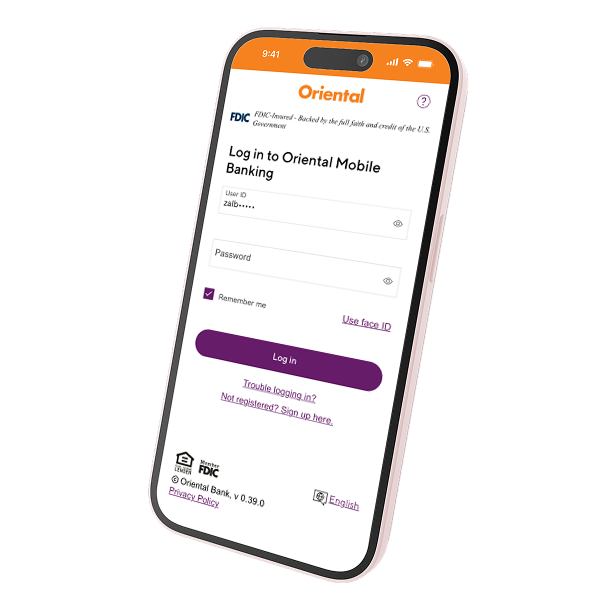
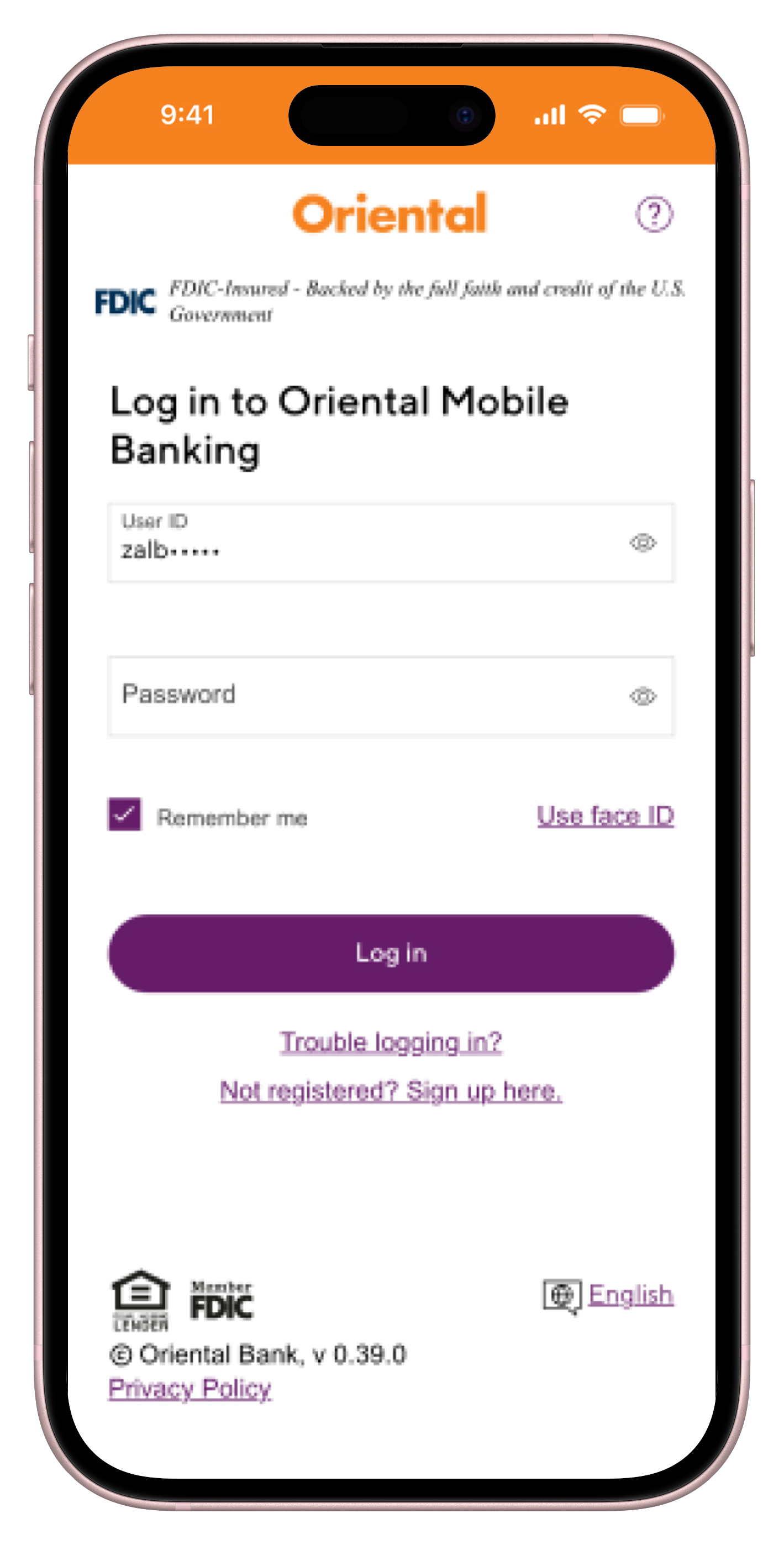
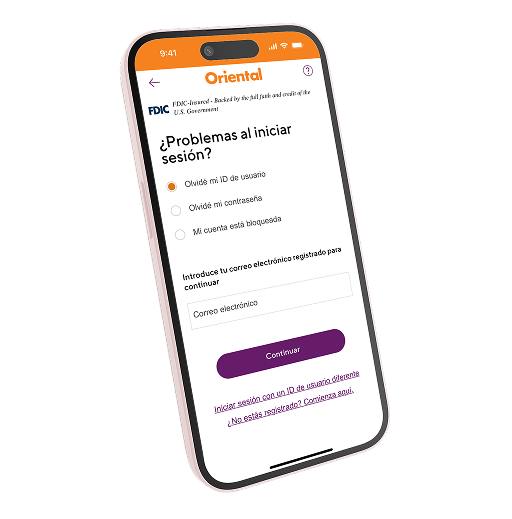
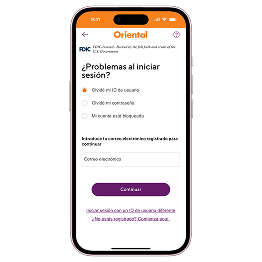
Forgot your user ID
- Click “Trouble logging in?”
- Select “I forgot my user ID”, enter the email and press “Continue”.
- Follow the authentication process with the unique code.
- You will receive an email with your username.
Forgot your password
- Click “Trouble logging in?”
- Select “I forgot my password”, enter the email and press “Continue”.
- Follow the authentication process with the unique code.
- You will receive an email with your temporary password.
Your account is locked
- Click “Trouble logging in?”
- Select “My account is locked”, enter the email and press “Continue”.
- Follow the authentication process with the unique code.
- It will be displayed that the account was unlocked and you will receive an email with a link to log in.
You can order checks from your Mobile Banking or Online Banking at your convenience. It is important that the first order is placed at a branch. The cost of the checks will be charged to your account.
Follow these steps:
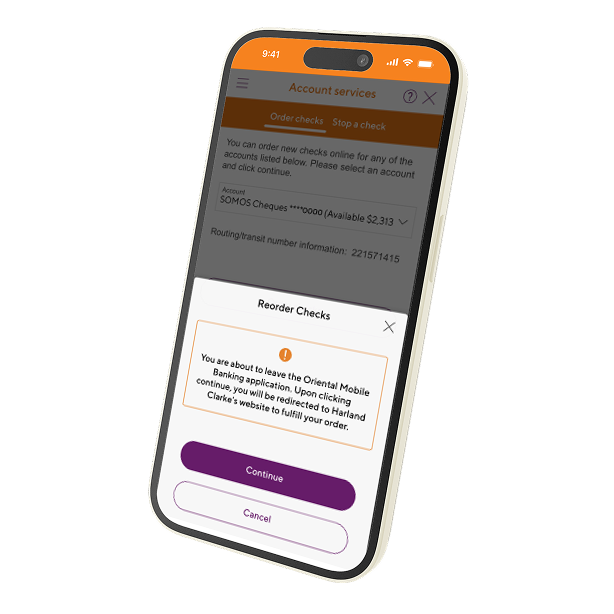
- Click on “Services”, then select “Order Checks”. Select the account for which you wish to place the order and then click on “Order Checks”.
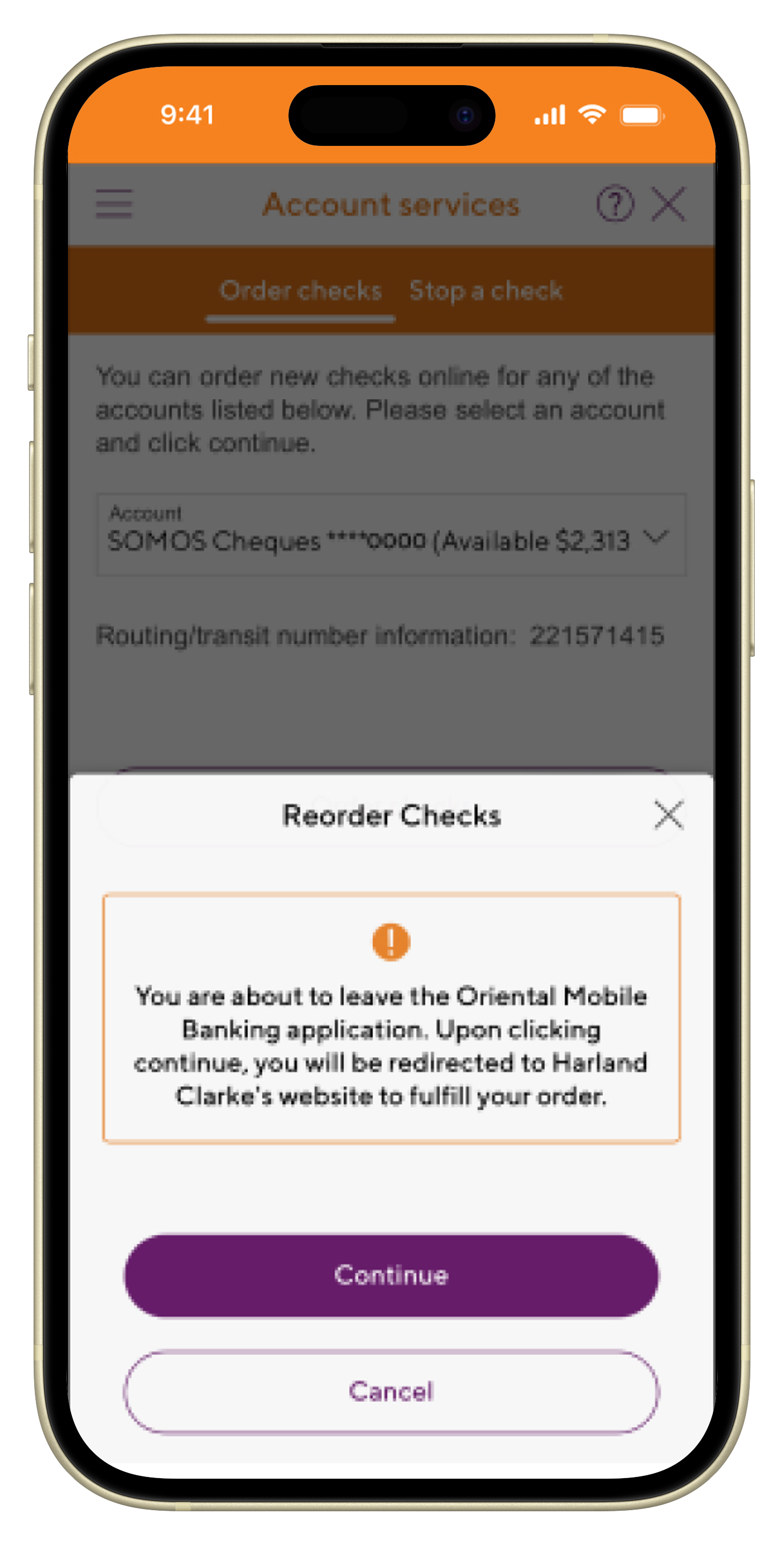
- Confirm that you wish to exit the application to be directed to the Harland Clark portal.
- On the Harland page, confirm and/or edit the check order information and confirm the order.
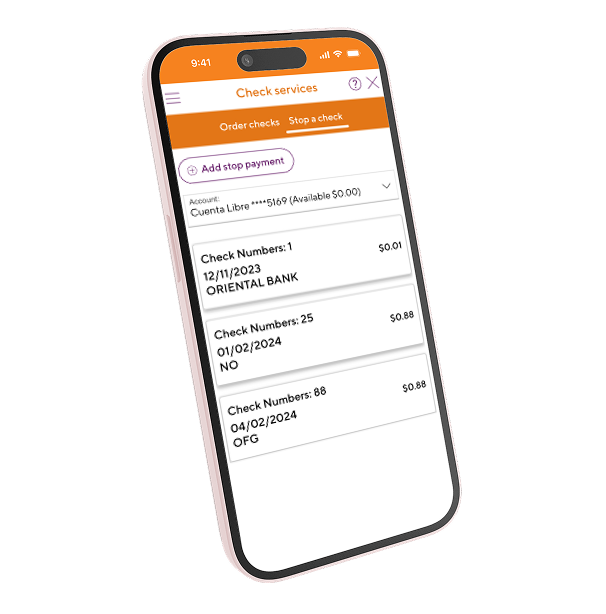
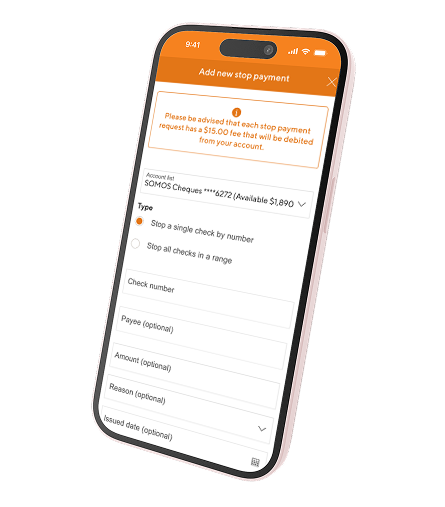
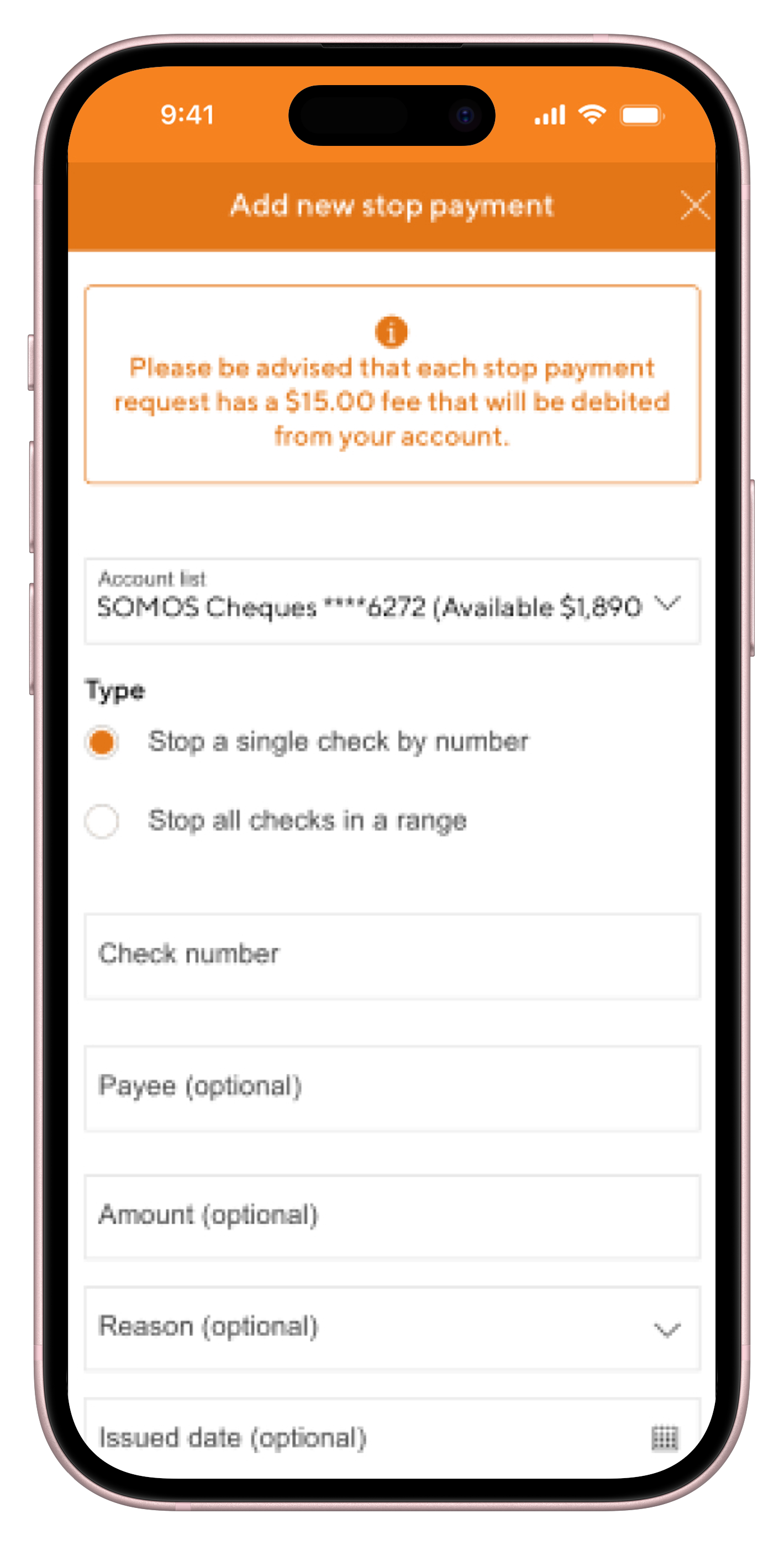
You can stop payment on a check from your Mobile or Online Banking. There is a $15.00 fee that will be applied to your account. If you need to stop payment on a check:
Follow these steps:
- Click on “Services”, click on “Stop payment of a check”. Select the account from which you want to stop payment and click on “Stop payment on a check”.
- Complete the information and confirm if it is for a single check by check number or for a range of checks.
- Read and accept the Stop Payment Disclosure.
- Review details and confirm the stop payment. You also have the option to edit or cancel the transaction.
- The stop payment confirmation will be presented. The system will present the option to add another stop payment before exiting the screen.
- Upon confirmation, the stop payment will be shown on the main services screen by account.
Sigue estos pasos:
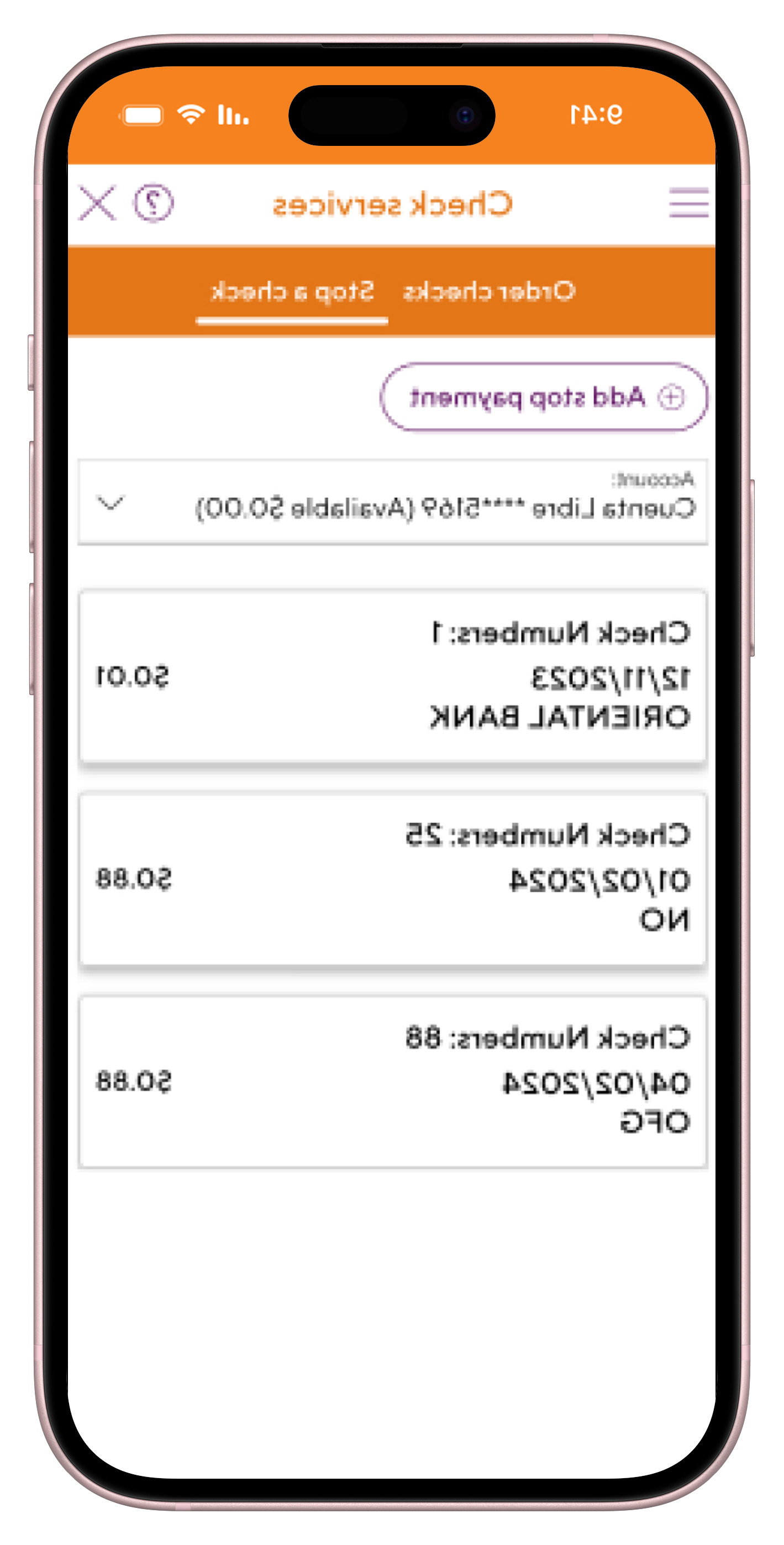
- In the “Service” section, select the “Stop payment on a check” option.
- The stop payments that are in effect will be displayed on the screen.
- Clicking on the stop payment will present you with the details of the stop payment.
- On this screen you will have the option to remove it.
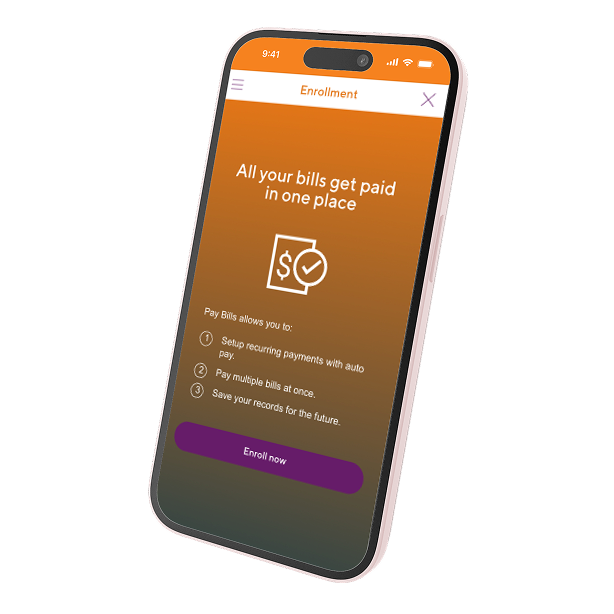
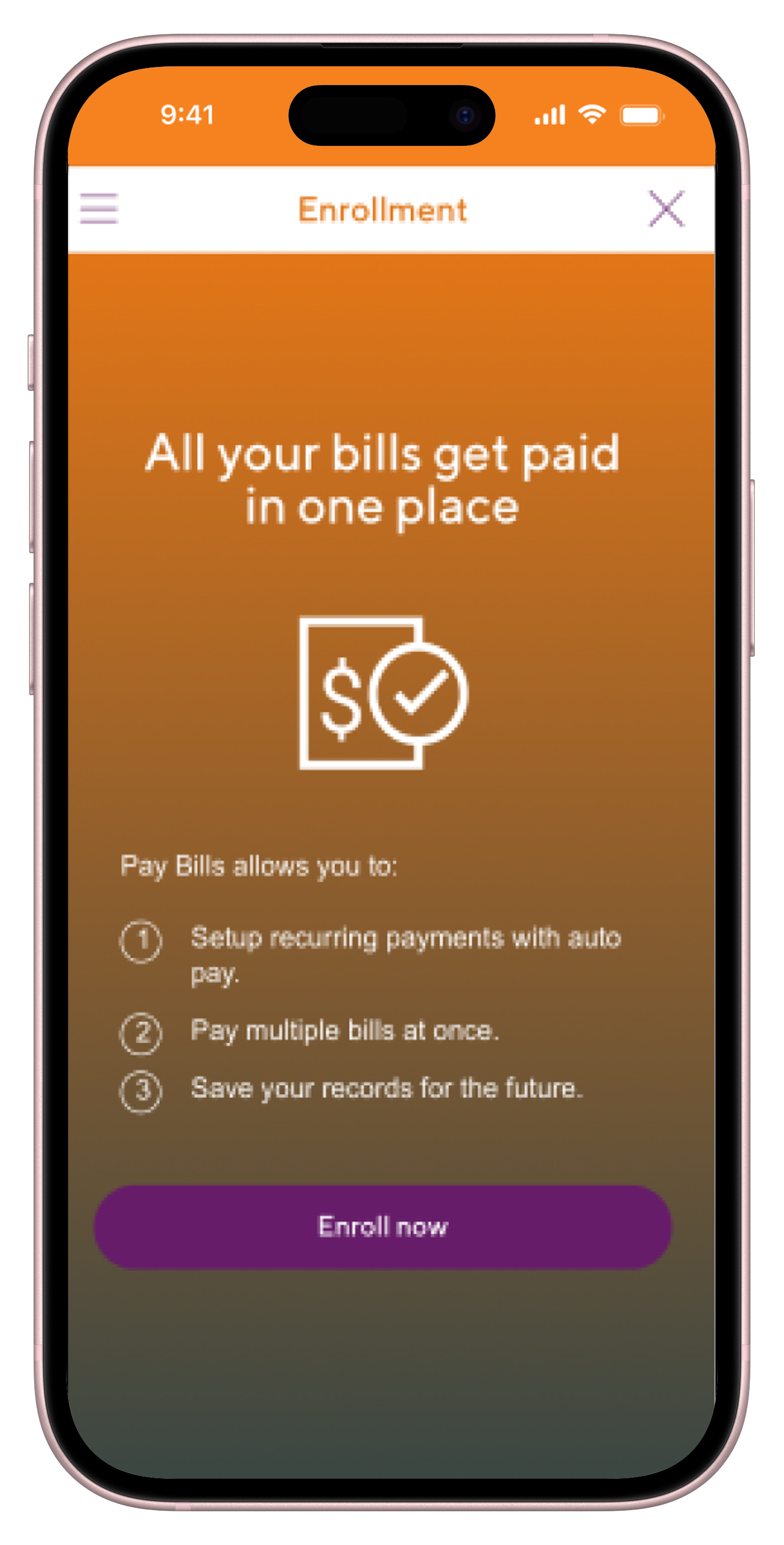
You will have two alternatives to register: through the “Services for you” screen or directly in the “Pay Bills2” service through the “More” section.
- Click on “Enroll”.
- Select the accounts eligible for the service and click “Continue”.
- You are now registered and ready to pay.
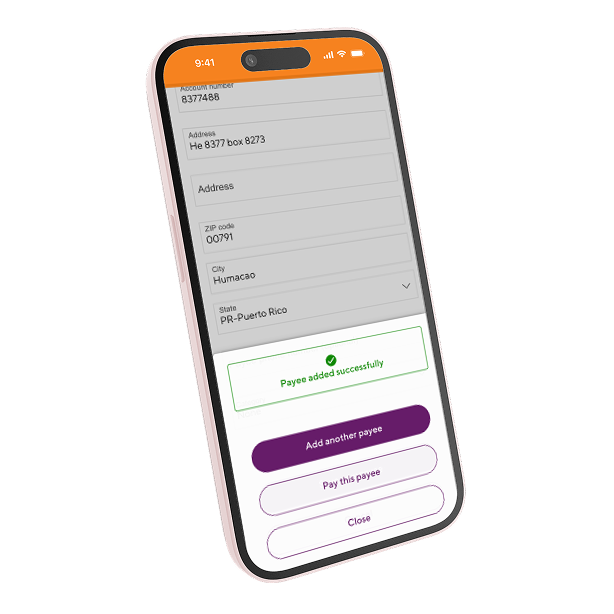
- Click on “Add payee”.
- Enter the name of the merchant. As you type, they will appear in the list. Select the merchant.
- Add the merchant information and press “Save new payee”.
- Done! The payee has been successfully added. If you wish to make a payment, click “Make a payment”.
- Click on “Add another payee”.
- Enter the name of the non-affiliated merchant and click on “Create payee with check payment”.
- Add the merchant information and click “Save new payee”.
- Done! The merchant was successfully added. If you wish to make a payment, click “Make a payment”.
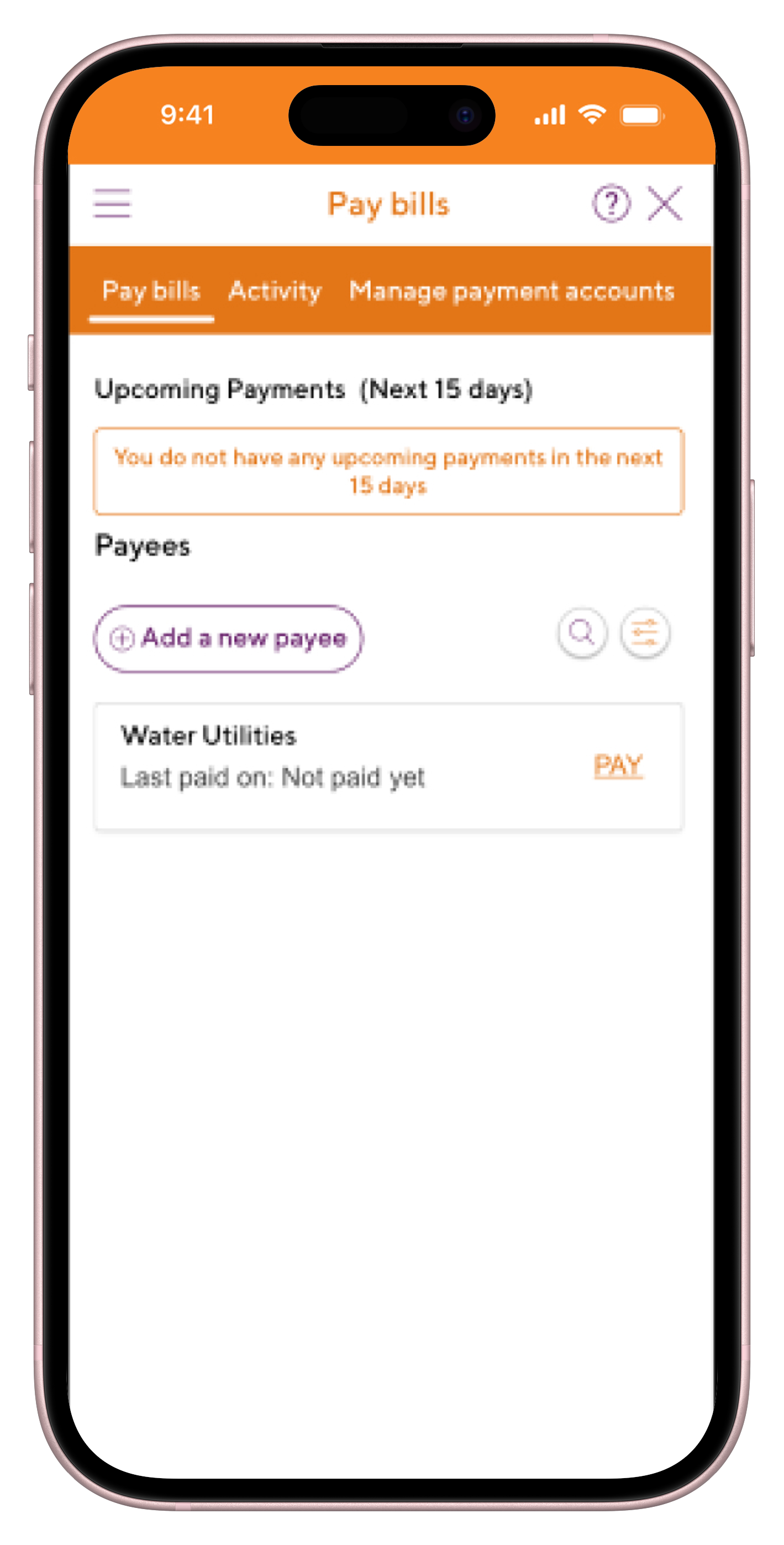
- In the “Pay Bills” tab, select the payee you wish to delete.
- Click on "Delete".
- Confirm that you want to delete the payee.
- Done! You will confirm that the payee was successfully deleted.
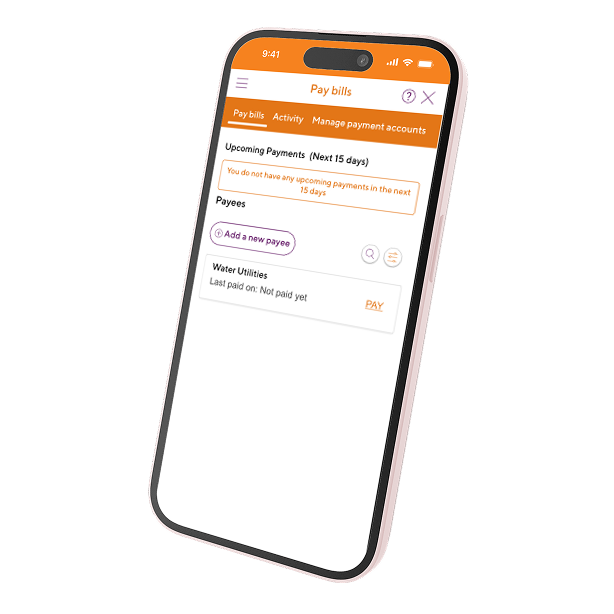
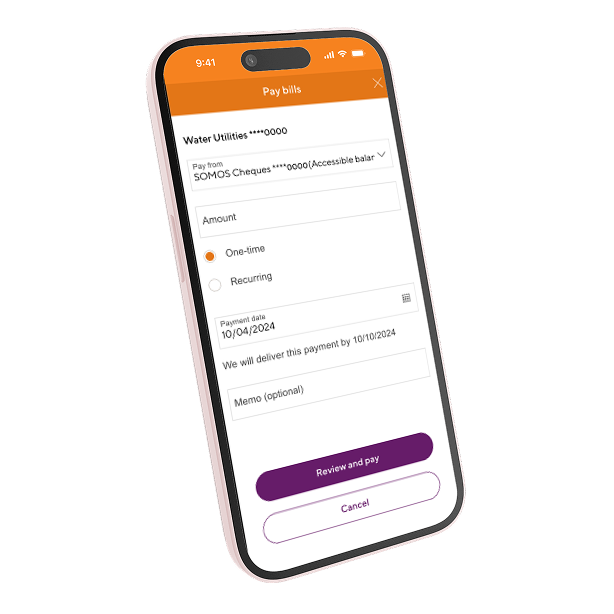
- Enter the requested information: Account Payable, Amount, Recurrence, Payment Date, Memo. Select “Review” or “Pay”. For recurring payment the options are presented: Start Date, Frequencies (Weekly, Bi-Weekly, Bi-Weekly, Bi-Weekly, Every 4 Weeks, Monthly, Every 2, 3 or 6 months, Annual, or Immediately, Continue Until).
- Review the payment information and click on “Make Payment”.
- Once the payment is completed, a confirmation message will be presented.
You will be able to edit scheduled payments. If the payment will be made on the same day you wish to edit it, you must do so before 8:00pm for the payment to be made with the changes.
- In the “Activity” section, select the payment you wish to edit.
- Click on "Edit payment".
- Make the change in the allowed fields.
- Review and confirm the change and you're done!
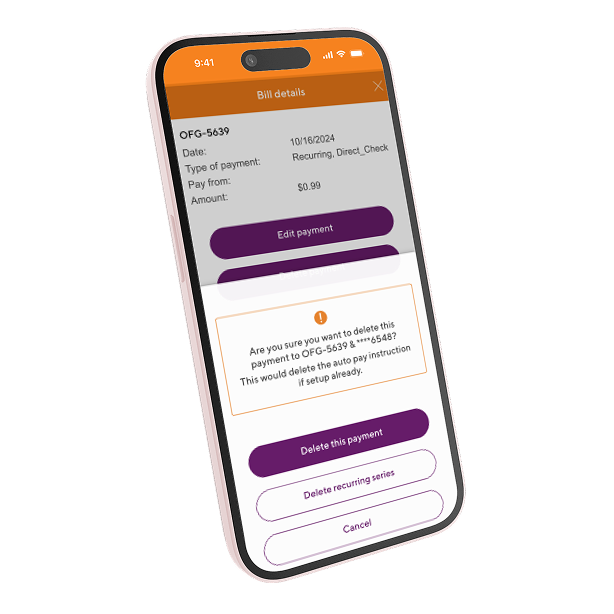
You will be able to delete scheduled payments. If the payment was scheduled for the same day you wish to delete it, you must do so before 8:00pm to prevent it from being sent.
- In the “Activity” section, select the payment you wish to delete.
- Click on "Delete payment".
- Confirm that you want to delete the payment.
- Done! Confirmation that the payment was successfully deleted will appear on the screen.
Follow these steps:
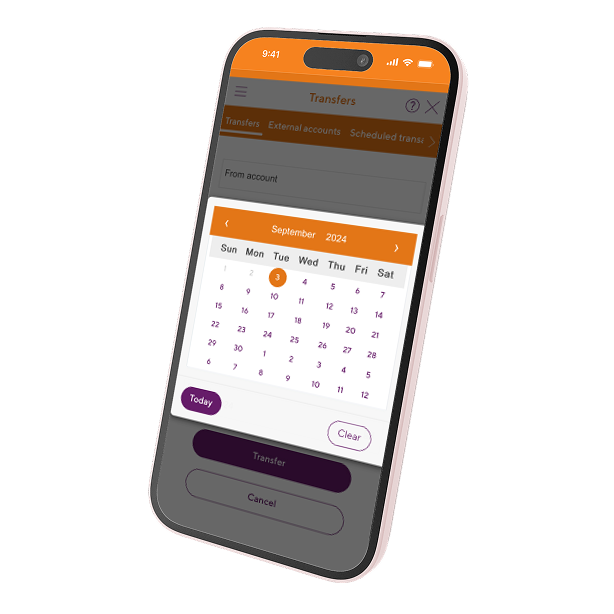
- On the “Transfers” screen complete the fields: “Transfer from”, “Transfer to”, “Amount” and “When?”. It will allow you to pay loans, lines of credit or transfer to an external account3. You can select the frequency that best suits your needs: Once (immediate) or Schedule: Weekly, Biweekly, Monthly, Quarterly, Semi-Annual, Annual and Specific Date.
- Confirm the transfer. You can also edit the transfer or cancel it.
- The system will confirm that the transfer was processed and provide the option to: print a receipt, refresh the balances on the screen, create another transfer or view the transaction in the account.
- If you have scheduled a transfer, you will be able to locate it in the “Scheduled Transactions” tab. You will also have the option to filter by account.
Follow these steps:
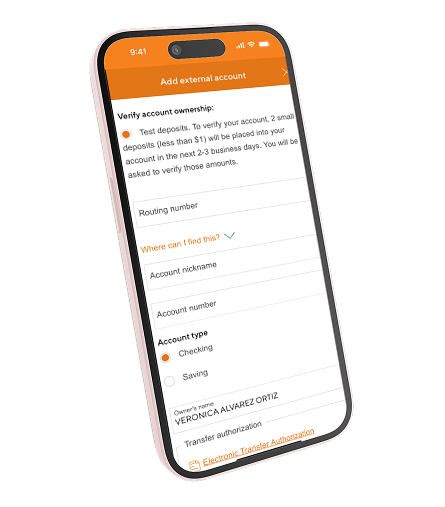
- In the “Transfers” section, select “External Accounts” and select “Add External Account”.
- Complete the external account information.
- Read and accept the terms and conditions. Click “Add External Accounts”.
- The account will be pending until the micro-debit and micro-deposit period is completed.
- When the micro-deposits have been completed, the application will notify you in the Notifications section and the external account will present the options to “Verify” and “Remove”.
- Click on “Verify”. You will need to enter the amounts of the micro-deposits received to your external account and click “Verify Account”.
- The application will confirm that the external account was successfully registered. By clicking on the account, you will be able to review the account details.
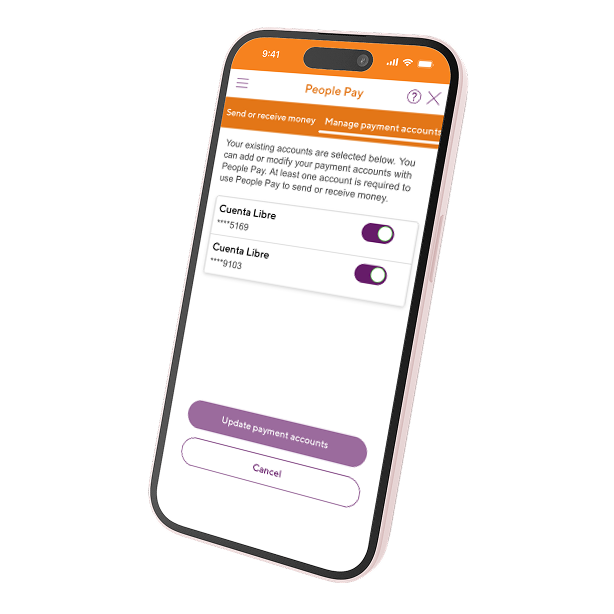
You will have two ways to register: through the “Services for you” screen or directly in the “People Pay4” section. ”.
- In the “People Pay4” section, click on “Register Now”.
- Select the accounts eligible for the service and click “Sign up for People Pay4”. You are now registered and ready to send money.
- Enter the information of the person to be paid: Full Name, Phone or Email, Amount, Select the sending method, Send to Email or Phone Number, Deposit directly to account.
- Review the shipping information. On that screen you will have the option to go back to edit or cancel.
- You will be presented with confirmation that the shipment was successful.
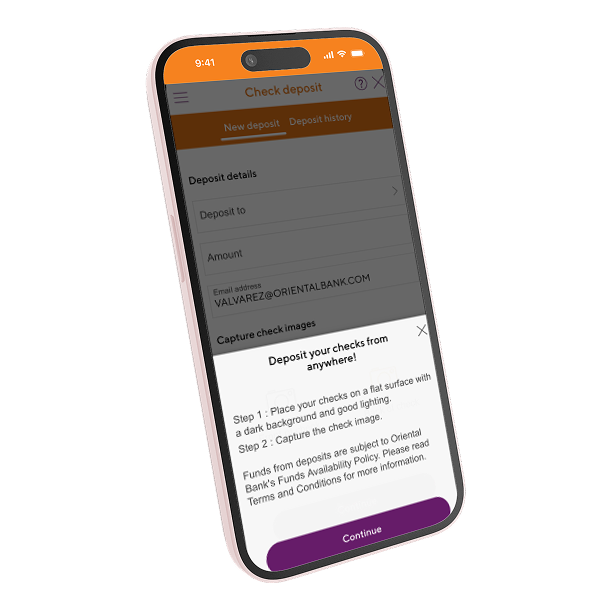
- Click on the “Deposit Check” icon. Complete the “Deposit to” and “Amount” fields.
- Take a picture of your check on both sides and click “Continue”.
- Review the deposit information and click “Confirm Deposit”.
- You're done! Your check has been deposited.
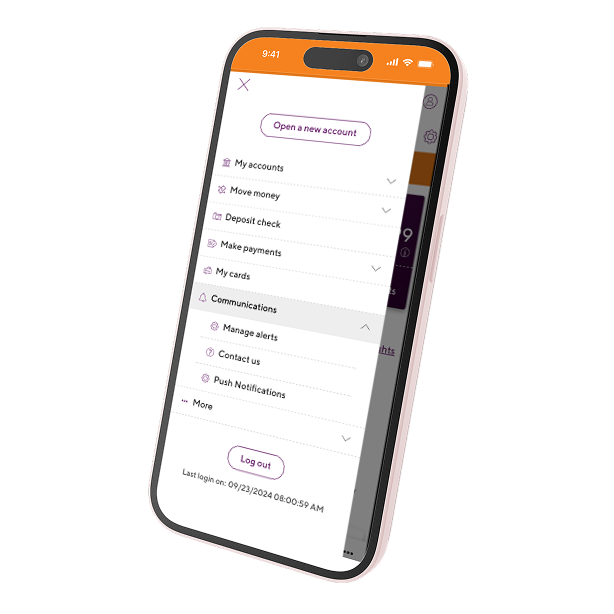
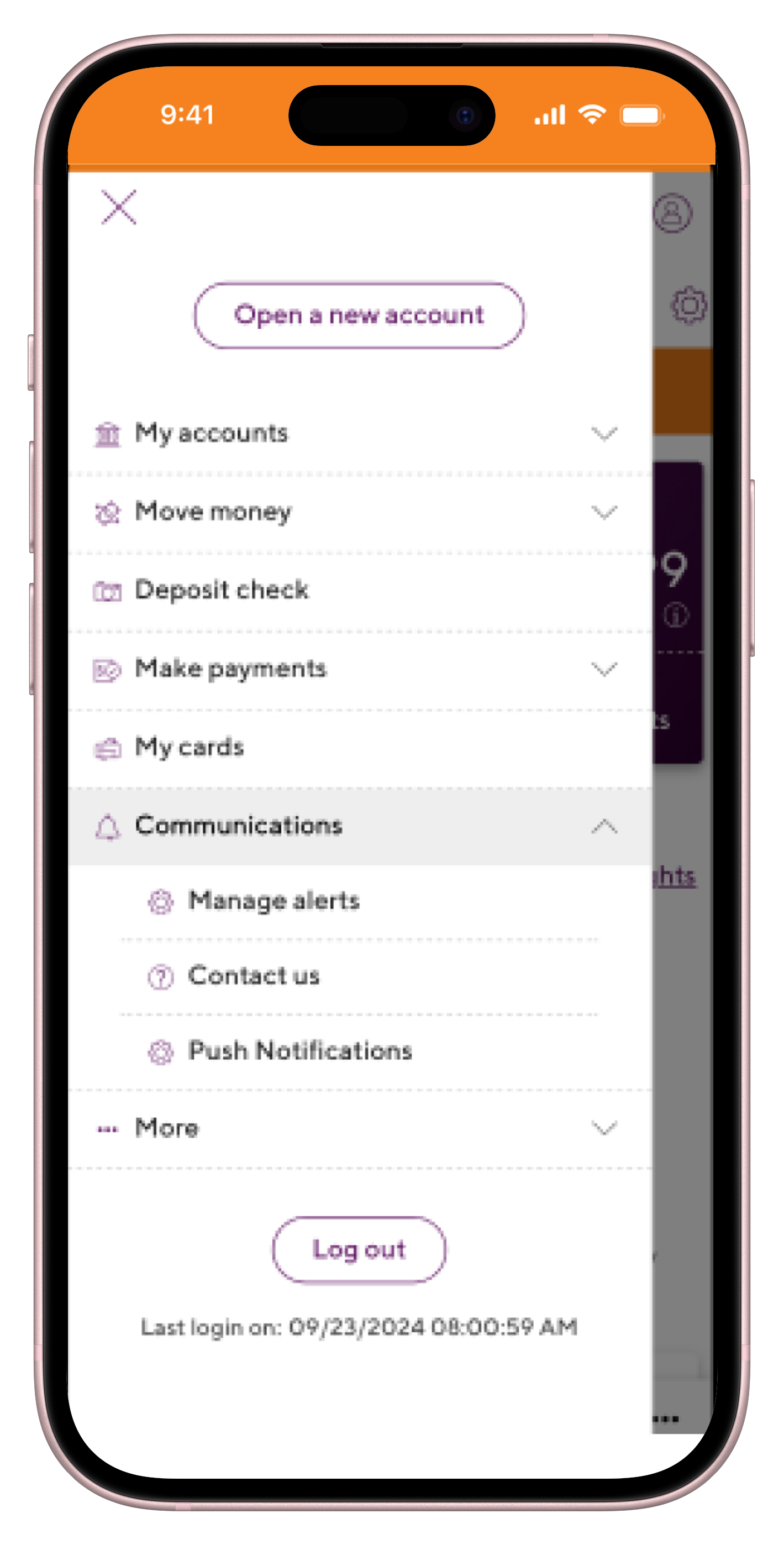
- Visit the “Communications” section, then “Manage Alerts”.
- Select the account where you want to activate the alerts.
- Under each alert choose the email and/or phone number where you want to receive the alerts.
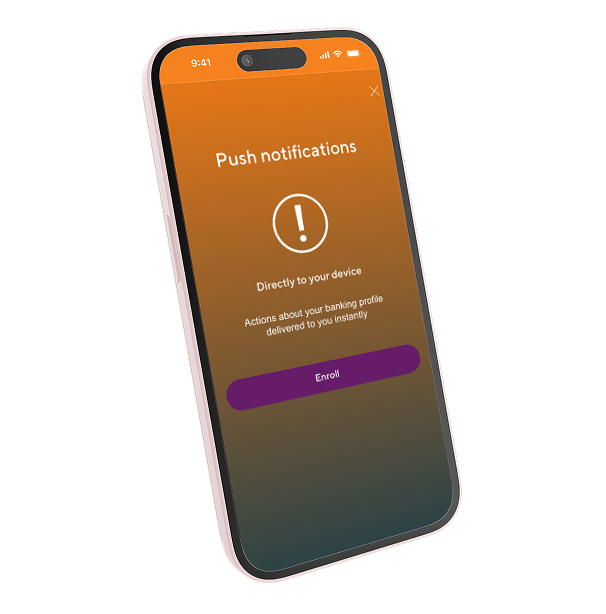
Configure your notifications
- From the "Communications" section, select "Push Notifications".
- On the "Settings" screen, identify your device and click "OK".
- After successful registration, click "Continue Push Notifications".
- You can now turn notifications on and off on your device in the settings section.
- You can turn off, turn on and remove devices added to receive push notifications.
Manage notifications for your cards
- The “Card Notifications” screen will display the list of your cards and show if they are enabled to receive “Push Notifications”.
- To set up Push Notifications for your card, select “Manage Card Controls” and it will take you to the “My Cards” section where it will allow you to enable/disable “Push Notifications”. You can select the type of transaction for which you wish to receive notifications.
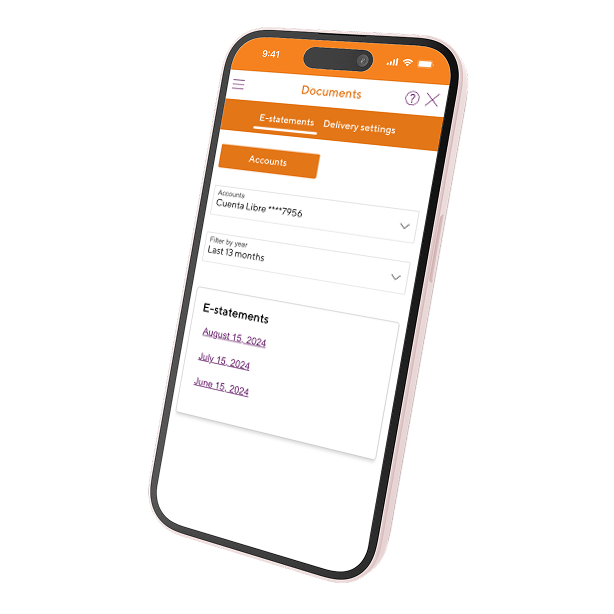
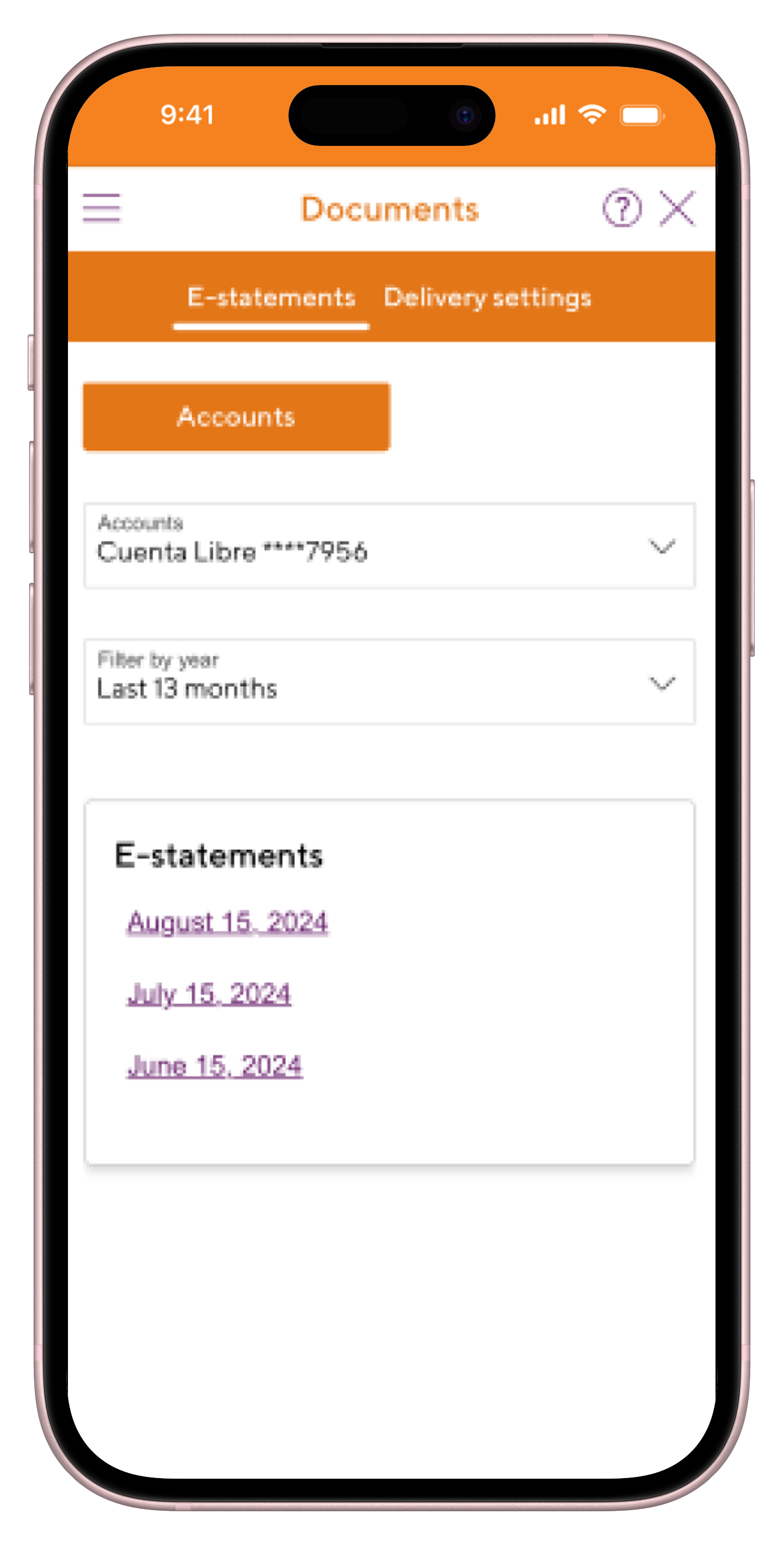
- From the menu select the "More" section, select "My Documents".
- In "Accounts" under the E-statements section, select the account.
- In the "Filter" by year, the E-statements for the last 13 months will be displayed by default, but you can filter by year up to a maximum of 7 years.
- The list of E-statements for the selected period is displayed.
Send configuration
To configure all accounts to E-statements just click on the button above and save the changes. It is important that you make the change individually per account.
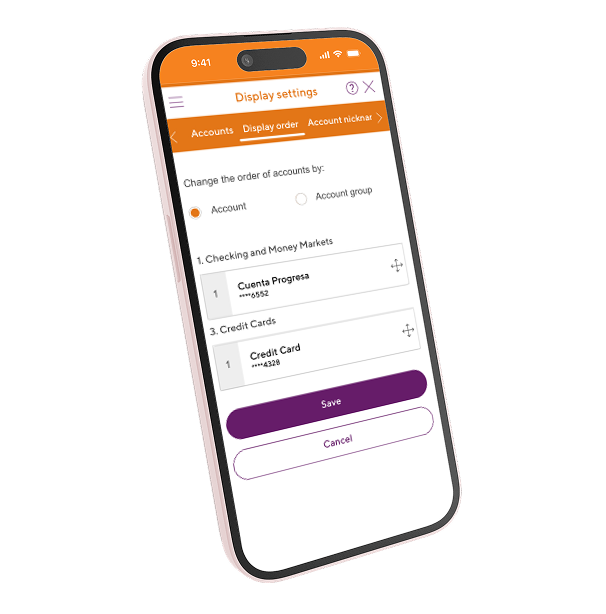
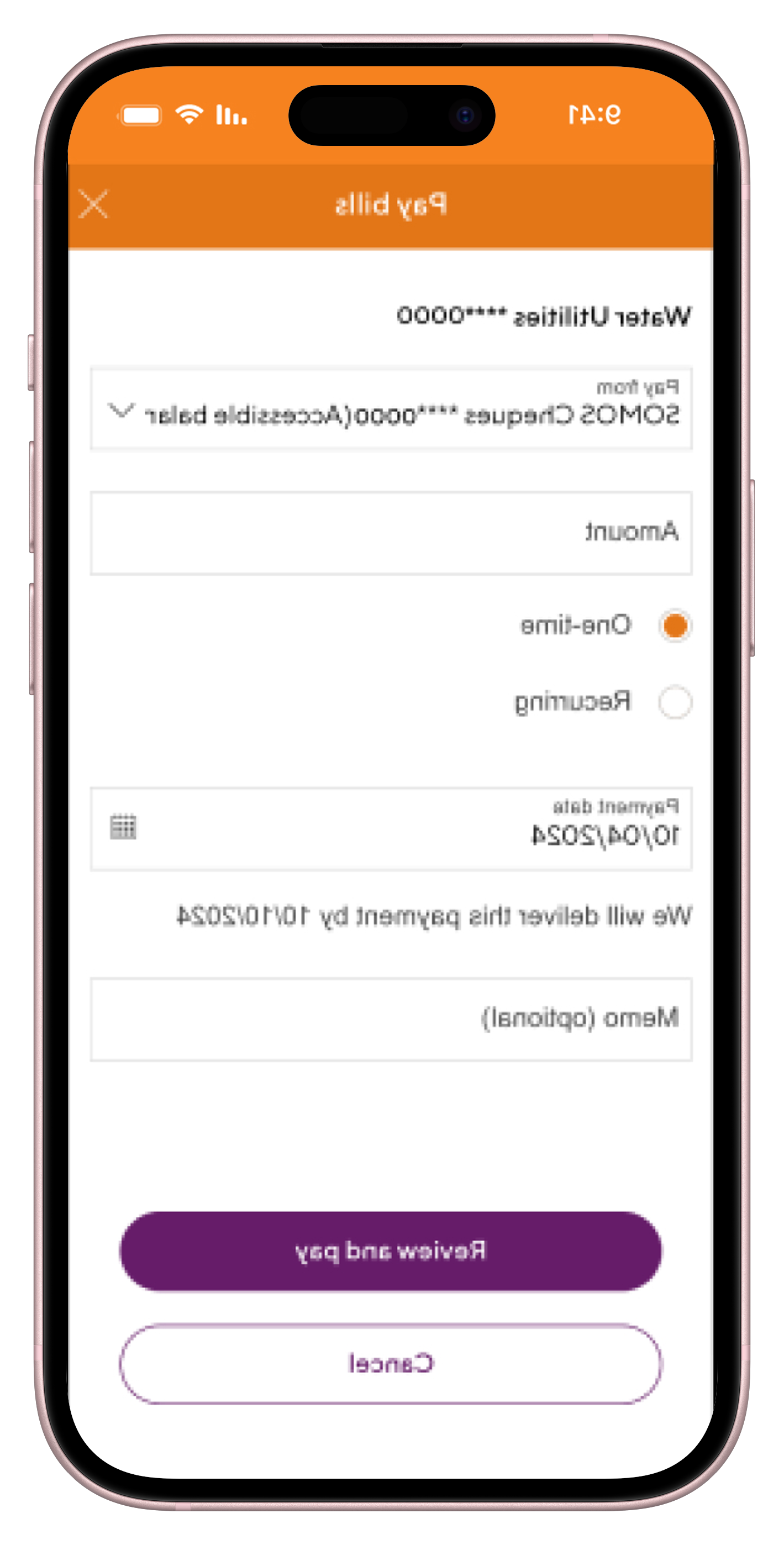
A screen will be displayed asking if you want to allow Mobile Banking to access location services on your device. Click "Allow" to be able to display the list of locations near you.
In the menu in the upper right corner, click "More", then "Locations".
The search alternatives:
- ATM/ Live Tellers
- Branches
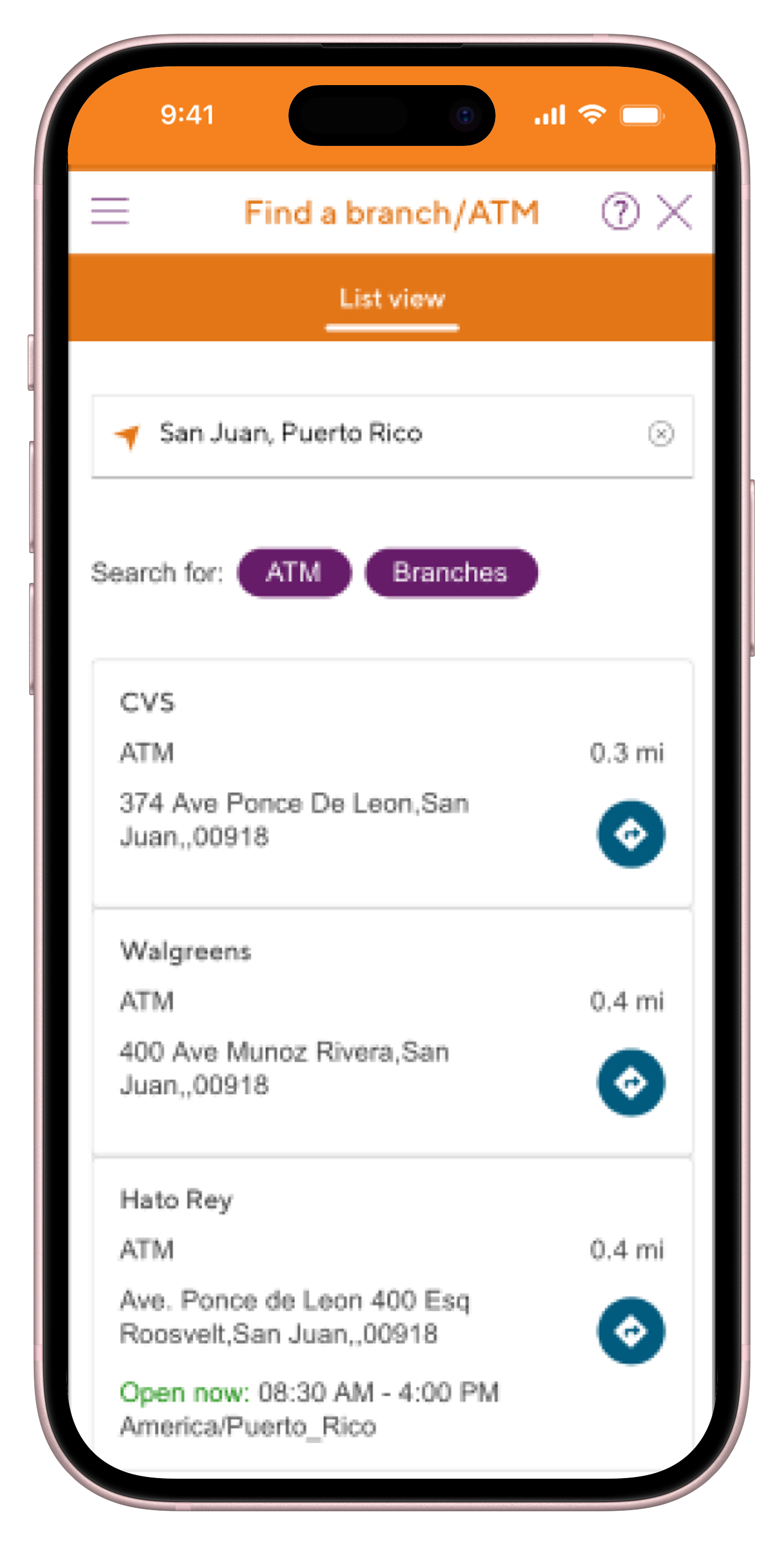
- In the search bar enter the town, address or zip code of your choice. It will show you the branches and/or ATMs closest to the selected address.
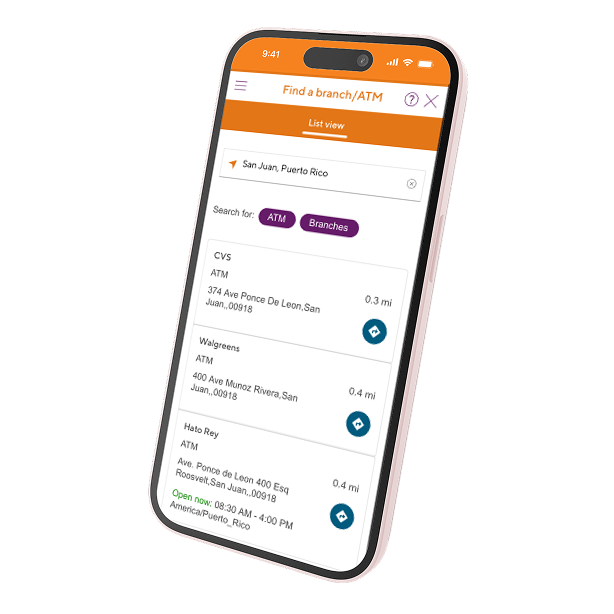




Sign up today for Oriental's new Mobile and Online Banking.
Enjoy your Mobile Banking and Online Banking better than ever. Sign up with these simple steps.

Recover access to your new Mobile and Online Banking.
Forgot your user ID, password, or your account is locked? We’ll help you recover access easily.

Set the language of your new Mobile and Online Banking.
Choose your preferred language between Spanish and English for a more personalized experience.

Set up alerts and notifications for your accounts and cards
Monitor your accounts and cards by enabling alerts and notifications through our app.

Learn to make secure transfers and add external accounts easily.
Make secure transfers and add external accounts effortlessly using our app.

Send money and deposit checks easily with our app
Learn step by step how to send money and deposit checks using our mobile app

Set up your payments and manage payees
Learn how to set up payments and manage payees efortlessly on our platform

Make, edit, and delete payments with ease
Learn how to make, edit, and delete payments effortlessly using our platform

View and set up delivery of your E-statements easily
Learn how to view your E-statements and set up their delivery for added convenience on our platform
Customize your screen and find nearby branches or ATMs easily
Learn how to set up your screen and locate nearby branches or ATMs effortlessly


Yes. You will be able to see your previous statements up to a maximum of 72 months prior.
Your new Mobile Banking and Online Banking will have new technology that constantly analyzes your financial behavior to give you intelligent suggestions that help you develop better habits, as well as other tools that make it easier to manage your account from your phone. Now they offer:
- Smart suggestions that help you make informed decisions about your money, tailored to your needs and financial habits.
- Monthly projections of your transactions and balances, allowing you to anticipate expenses and stay on top of your financial situation.
- The opportunity to create monthly budgets by categorizing your expenses, to help you manage your money effectively.
- Availability in your preferred language, ensuring a personalized and convenient experience (English or Spanish).
- Access to your e-statements at the end of each cycle, so you can review your transactions.
- More control over your card, with options like blocking and PIN change for enhanced security.
- On the “Transfers” screen, complete the fields: “Transfer from,” “Transfer to,” “Amount,” and “When.” It will allow you to pay loans, lines of credit, or transfer to an external account2. You can select the frequency that best suits your needs: Once (immediate) or Schedule: Weekly, Biweekly, Monthly, Quarterly, Semi-Annual, Annual, and Specific Date.
- Confirm the transfer. You can also edit the transfer or cancel it.
- The system will confirm that the transfer was processed and will provide the option to: print a receipt, refresh the balances on the screen, create another transfer, or view the transaction in the account.
- If you have scheduled a transfer, you will be able to locate it in the “Scheduled Transactions” tab. You will also have the option to filter by account.
- Click on "Trouble logging in?"
- Select "I forgot my User ID," enter the email address, and press "Continue."
- Follow the authentication process with the unique code.
- You will receive an email with your username.
If you need further assistance or have more questions, feel free to ask!
Yes. To activate alerts about your accounts, deposits, balances, and more, follow these steps:
- From the "Communications" section, select "Push Notifications."
- On the "Settings" screen, identify your device and press "Accept."
- After successful registration, press "Continue with Push Notifications."
- You can now turn notifications on and off on your device in the settings section.
- You can turn on, turn off, and delete added devices to receive "Push Notifications."
Disclosures
Certain terms, conditions, and restrictions apply.
(1) Apple and the Apple logo are trademarks of Apple Inc., registered in the USA and other countries. App Store is a service mark of Apple Inc. Android and Google Play are trademarks of Google, Inc.
(2) The Pay Bill service is subject to the availability of funds in the account. The transaction limit is $5,000; the daily limit is $15,000.
(3) Transfers to external accounts. $5.00 For each transfer made to an account through Online Banking. Per-transaction Limit $5,000; Monthly Limit $10,000; Per day limit 5; Per month limit 10.
(4) To make payments with People Pay you must be registered in Mobile and Online Banking. The People Pay service has a payment limit of $2,000 per transaction and $4,000 per day. For more details, see the People Pay Terms and Conditions here. Oriental Bank, Member FDIC.
(5) Only for individuals. Available for accounts: Libre, Elite, Somos, Progresa, Ágil, Progresa Contigo, ETA, ¡Ahorra!, Club del Ahorro, Crece, Yes! and ABC. Deposit limit: $6,000 per check; $12,000 a day; $24,000 every 25 days. All checks must be made payable to the account holder in which they are requested to be deposited and endorsed. Limit on the number of checks deposited: 10 per day and 30 per month. Subject to Oriental Bank’s Funds Availability Policy.
(6) Your wireless carrier's standard messaging rates apply to your entry or submission message, our confirmation, and all subsequent SMS correspondence. Oriental Bank does not charge for any content; however, downloadable content may incur additional charges from your wireless carrier. Please contact your wireless carrier for information about your messaging plan. Your carrier may impose message or charge limitations on your account that are outside of our control. All charges are billed by and payable to your wireless carrier.
Oriental Bank, Member FDIC.