
 EN
EN

 Puerto Rico
 US Virgin Islands



- EXPLORE THE PORTAL
We provide you with several services that are offered at our branches, such as paying and managing your personal loan, auto loan, mortgage, line of credit, credit card, letter and certification requests, and more, anytime and anywhere.

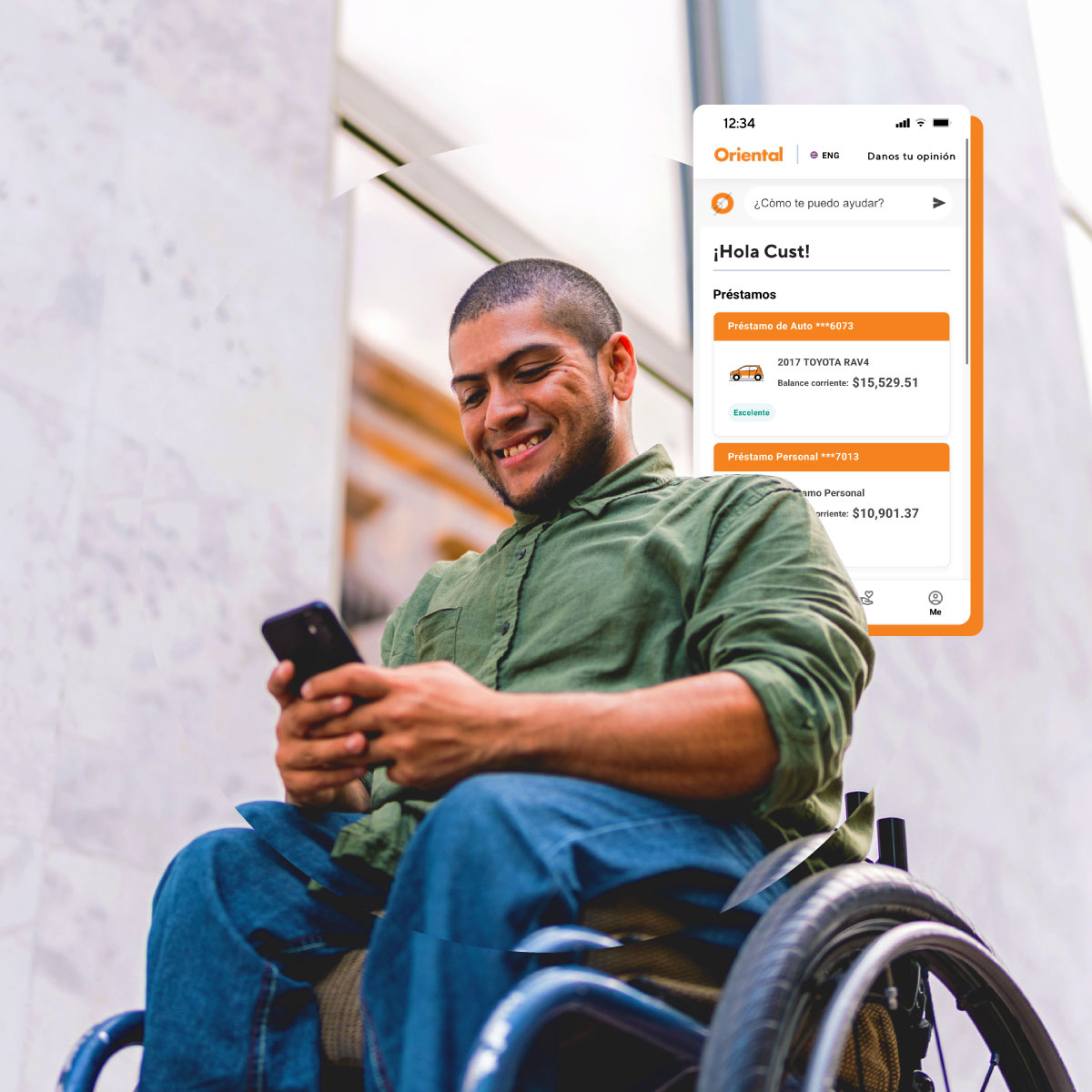
Resolve your matters on the service portal
This tool is designed to offer you the convenience you need to carry out your financial transactions efficiently, without complications, and with total security.


Monitor Your Accounts
View the payment history of your loans and monitor your deposit account.

Letters and Certifications
Generate payoff balance letters, loan, and account certifications, among others.3

-

 How to access
-

 Manage your accounts
-

 Make payments
-

 Request documents
You have two ways to access the Service Portal.
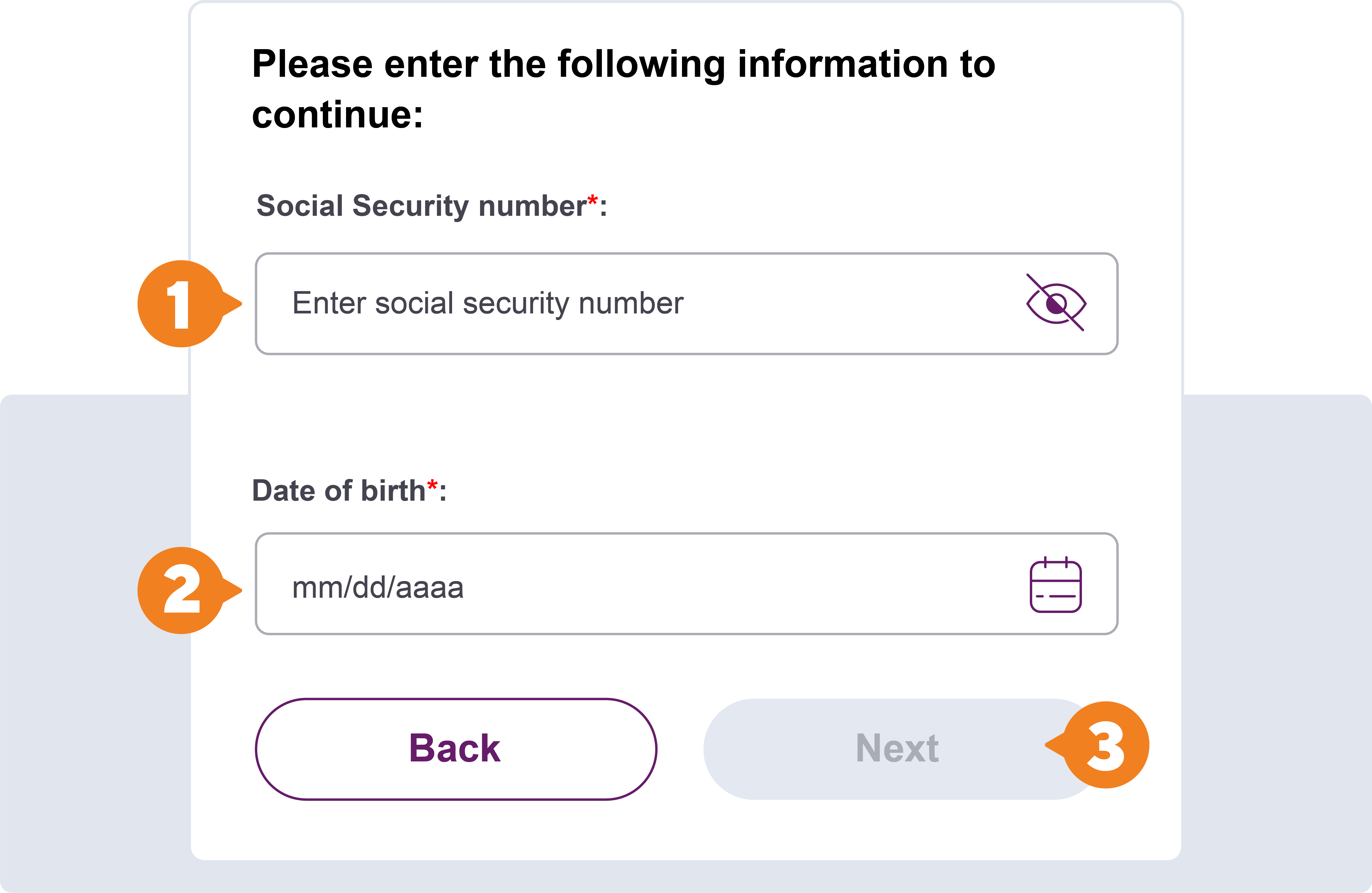
Option 1: Social Security Number and Date of Birth
- Enter your full social security number.
- Enter your date of birth.
- Press “Next”.
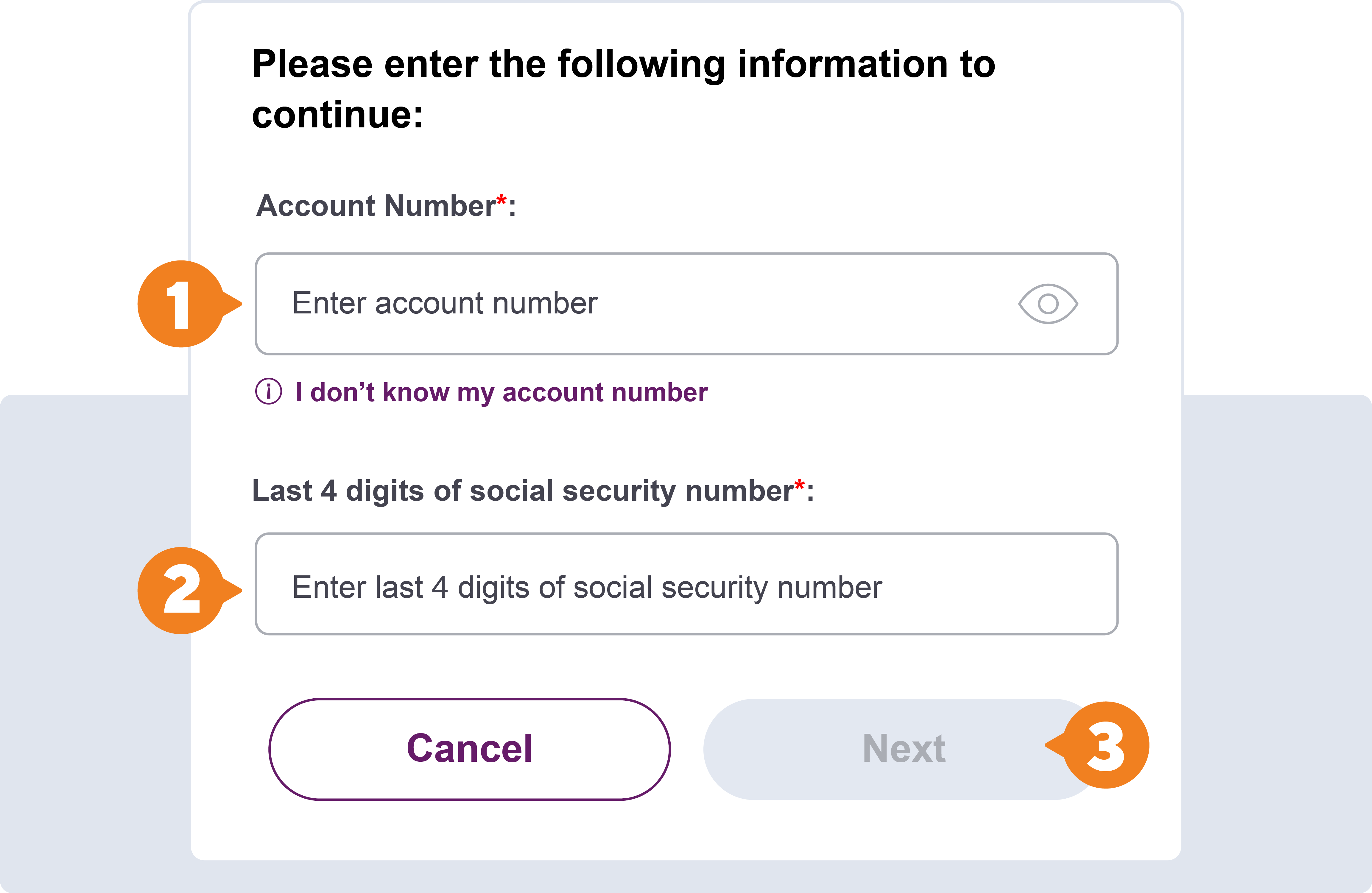
If you wish to use another authentication method.
- Enter your personal loan, auto loan, mortgage, line of credit or credit card account number.
- Enter the last 4 digits of your social security number.
- Press “Next”.
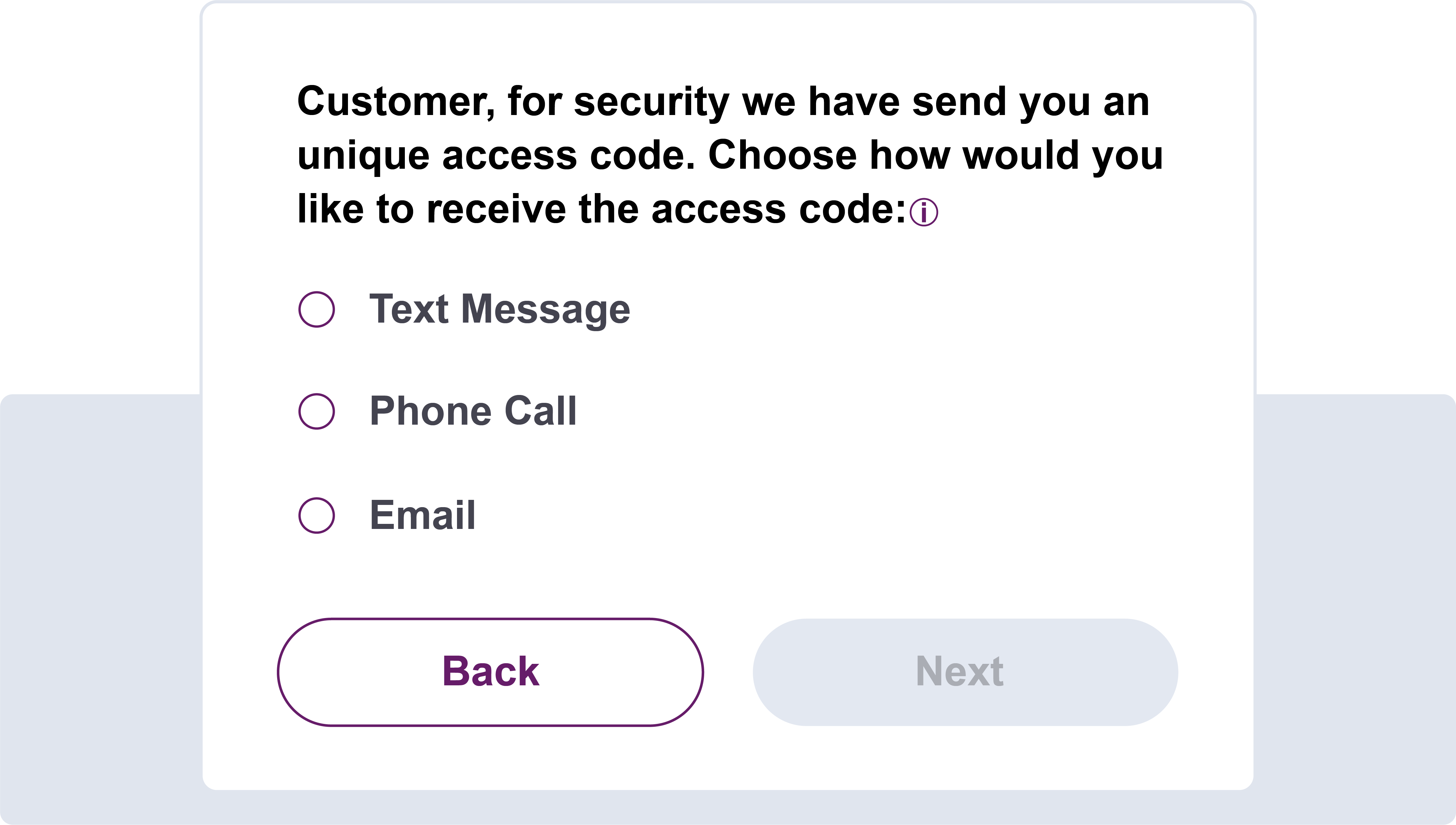
For security reasons, we will send you an access code and you can choose how you would like to receive it. Select the delivery method and click “Next". After you receive it, enter the code and press "Submit".
If this information is not updated, please call Toll Free: 787-620-0000 and we will be more than ready to assist you.
We’ll be with you every step of the way. You’ll be able to view the payments made toward your loan and your outstanding balance.
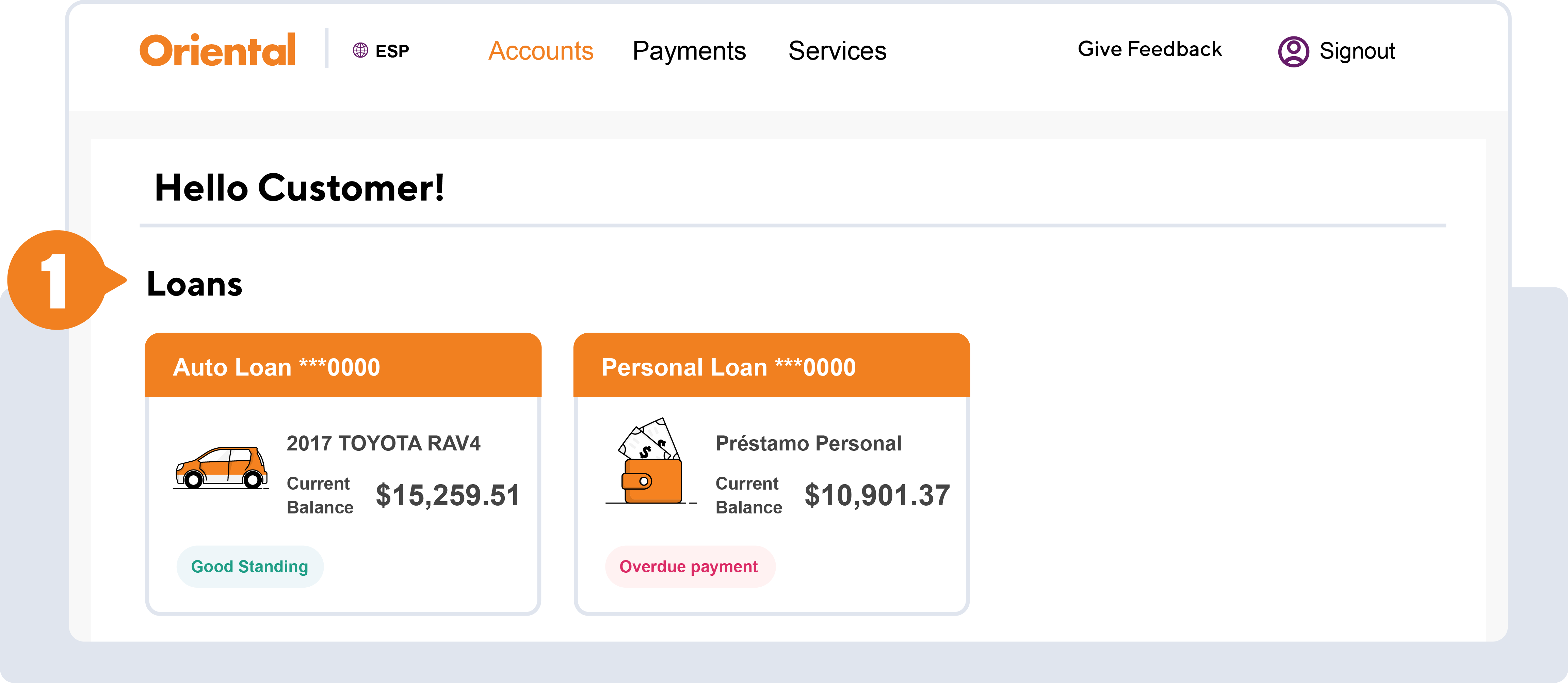
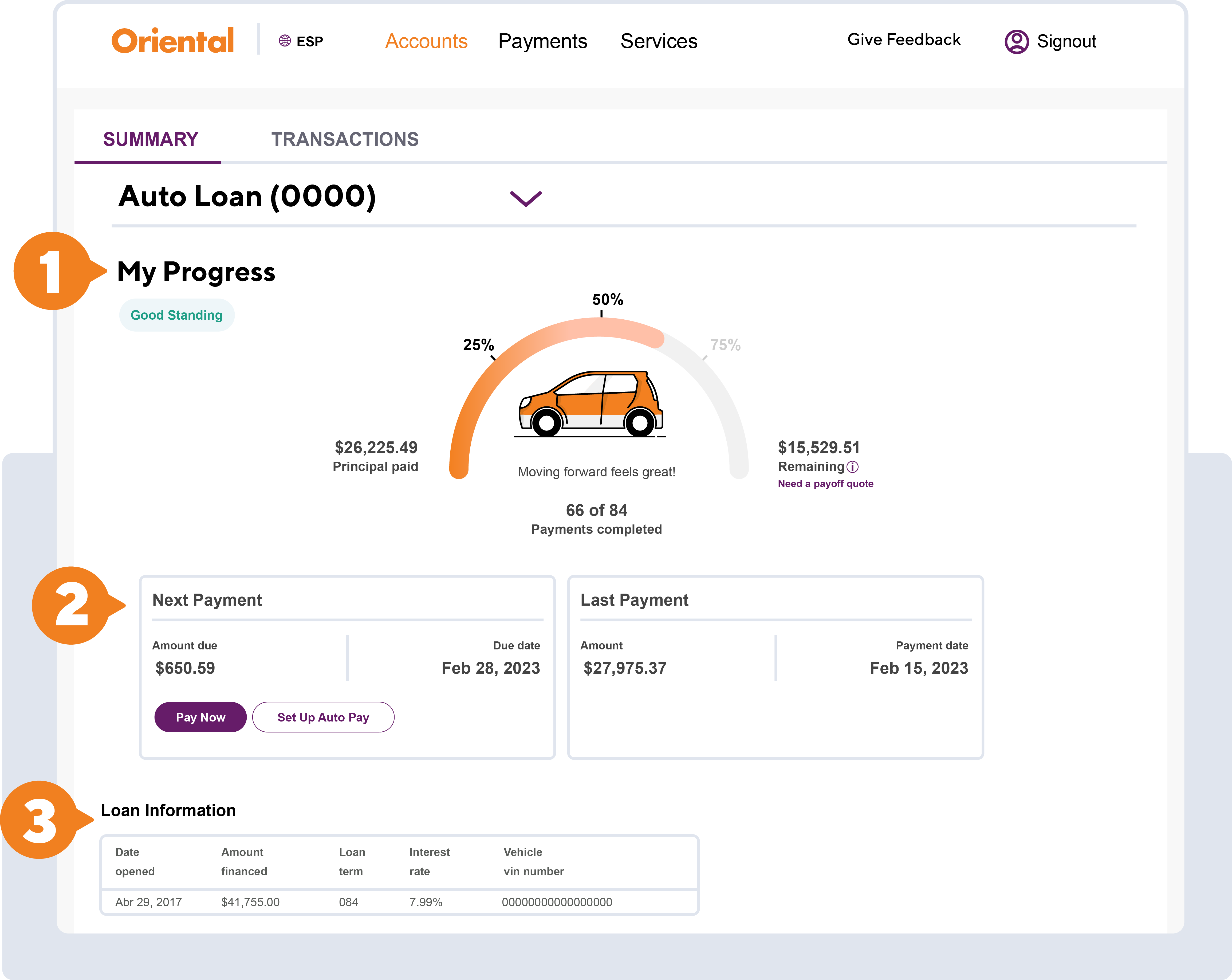
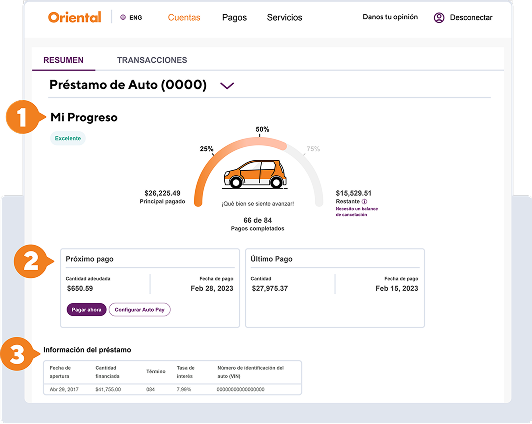
- Track the progress of your accounts.
- View details of your next payment, your last payment and access the payment screen and automatic payment options.
- Access detailed information about your products.
- Access your account transaction history.
- View transaction details.
- Report an error.
- Export transactions in PDF or CSV format.
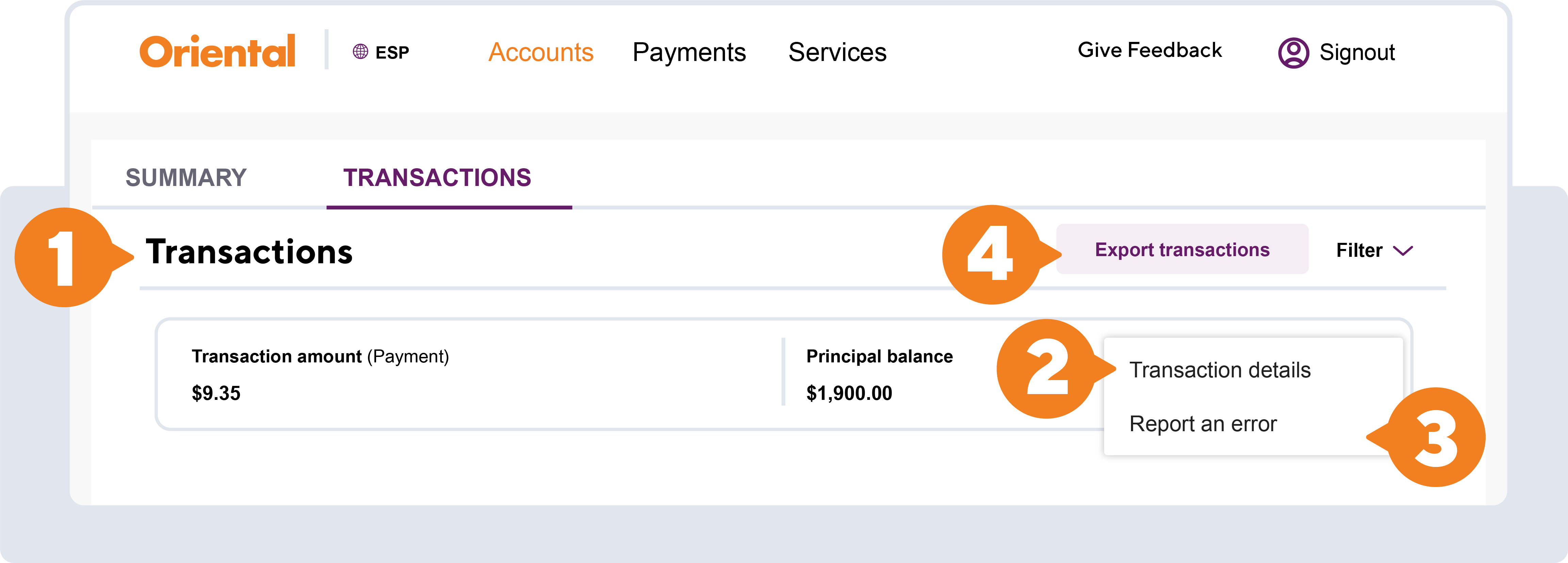
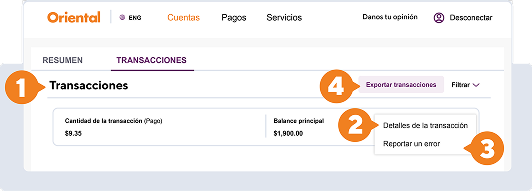
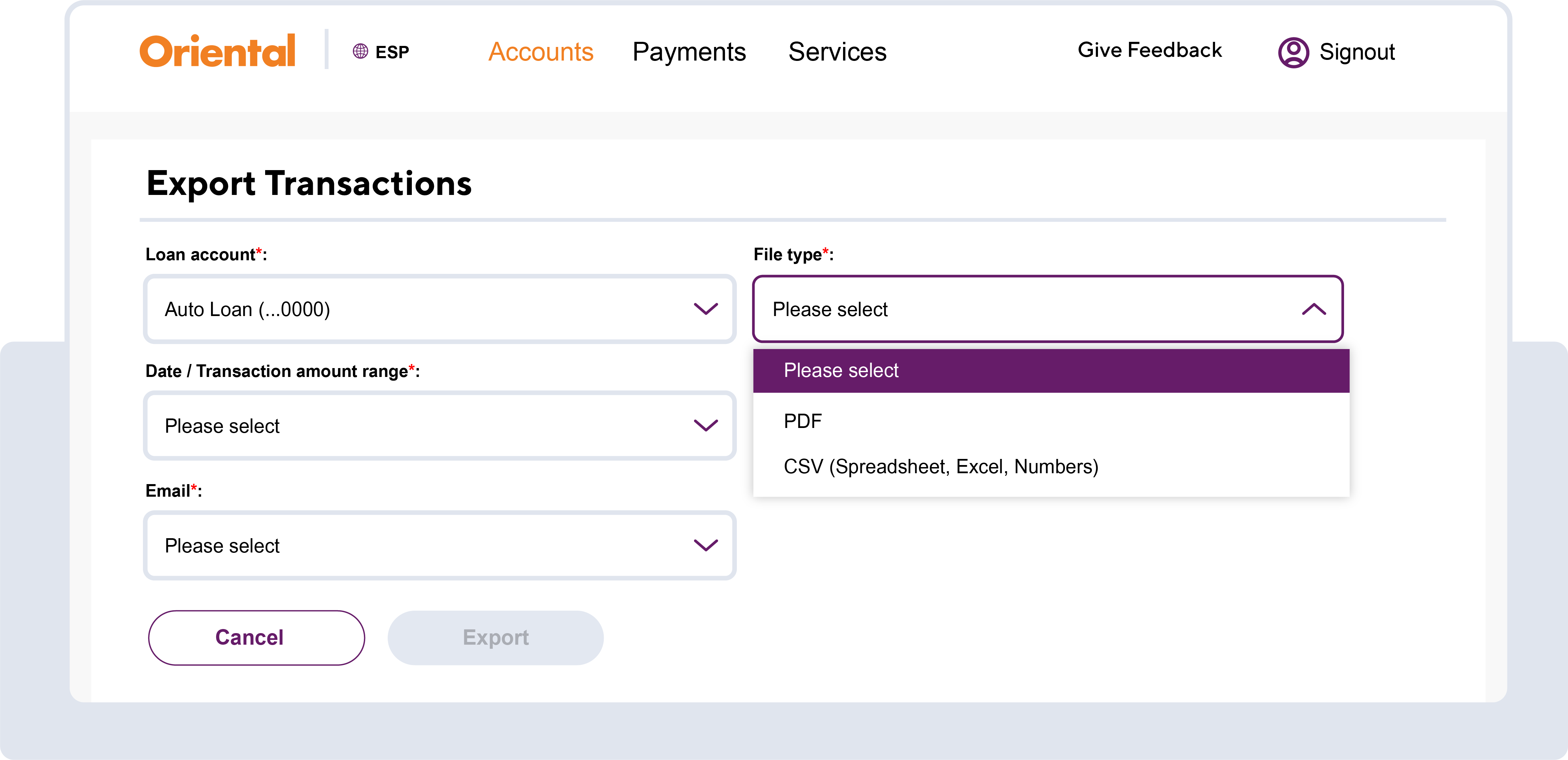
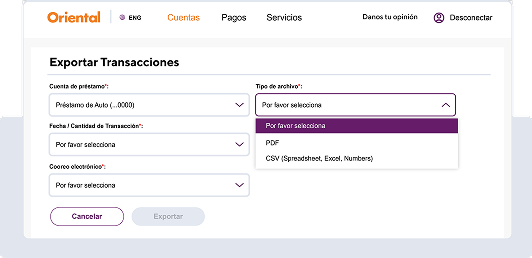
Choose the information you want to export: account, date range, file format and email where you want to receive it. After filling all the fields, press "Export".
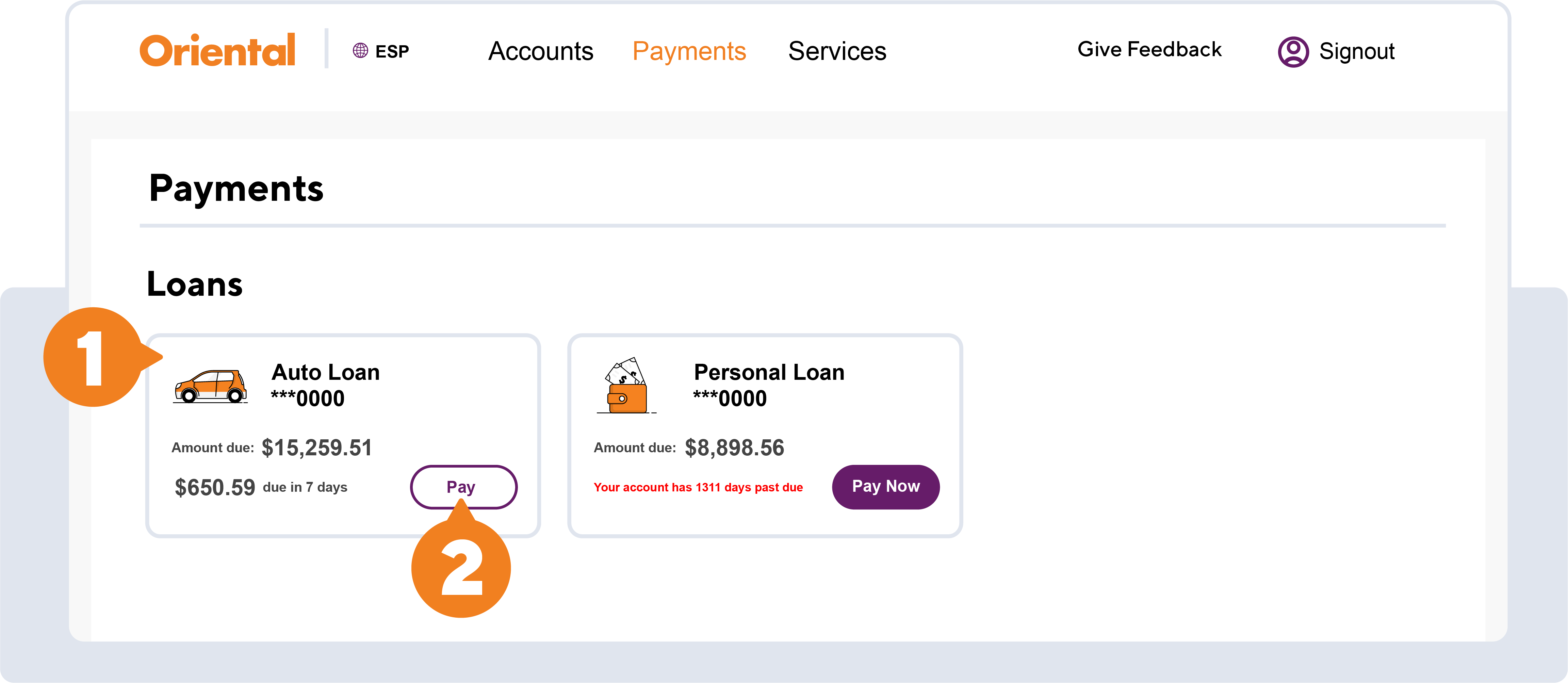
Under the "Payments" section, you can make payments on your loan, line of credit, and personal credit card.
- When you select an account, you will get more details about your payment.
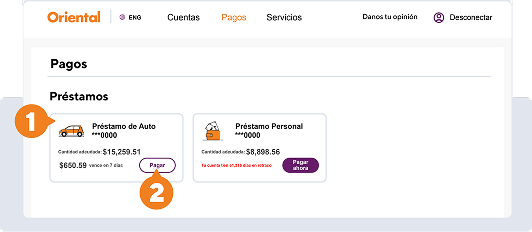
- Click on the "Pay" or "Additional Payment" button and you will be taken directly to the "Make a Payment" screen where you can choose the amount and method of payment.
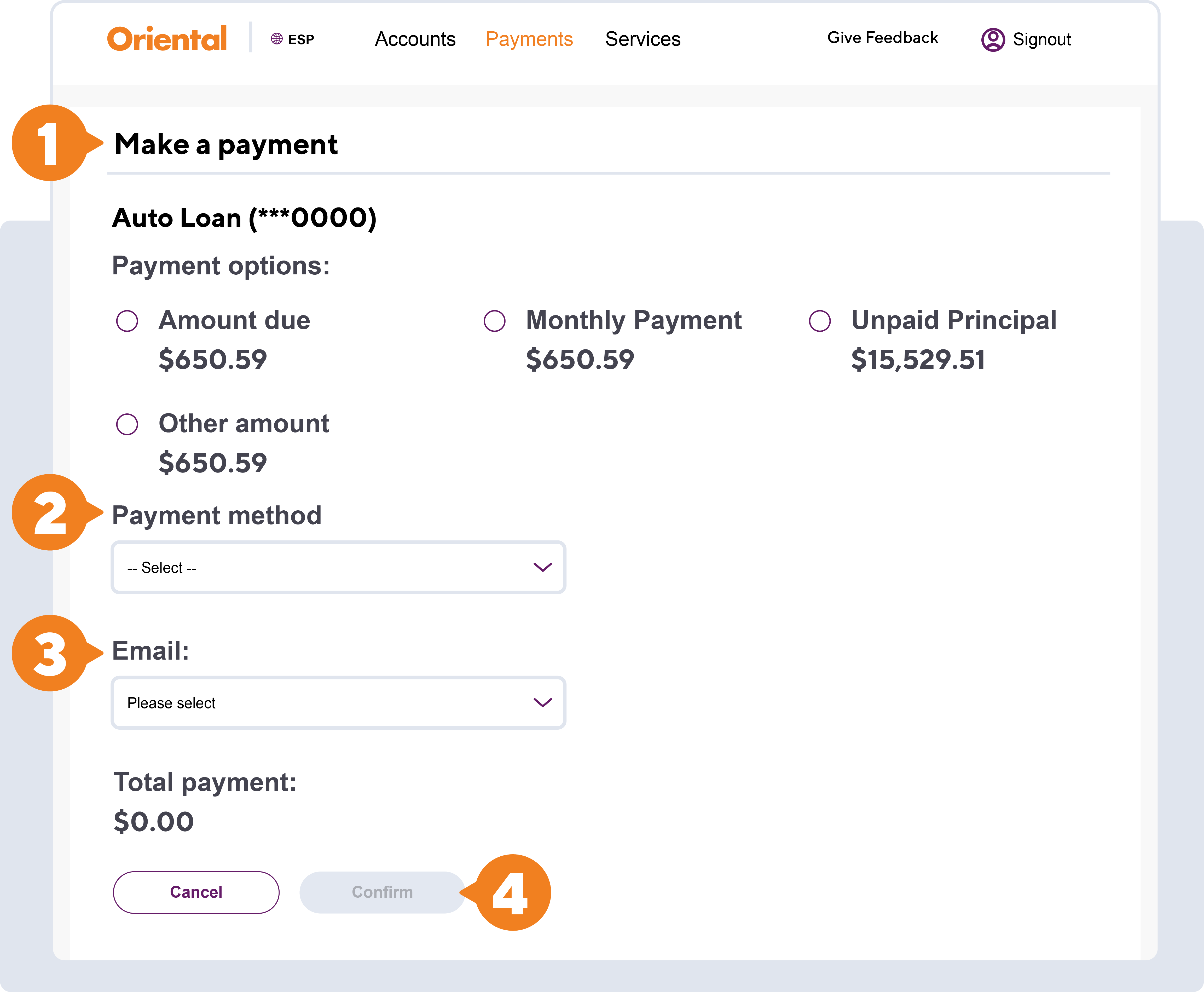
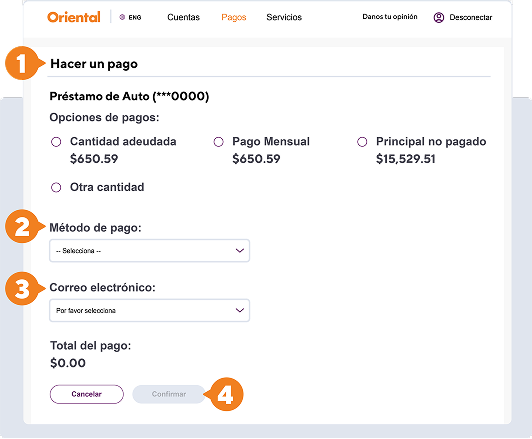
- Select the payment option you want.
- Choose the preferred payment method.
- Choose where you would like to receive your payment receipt.
- Press “Confirm”.
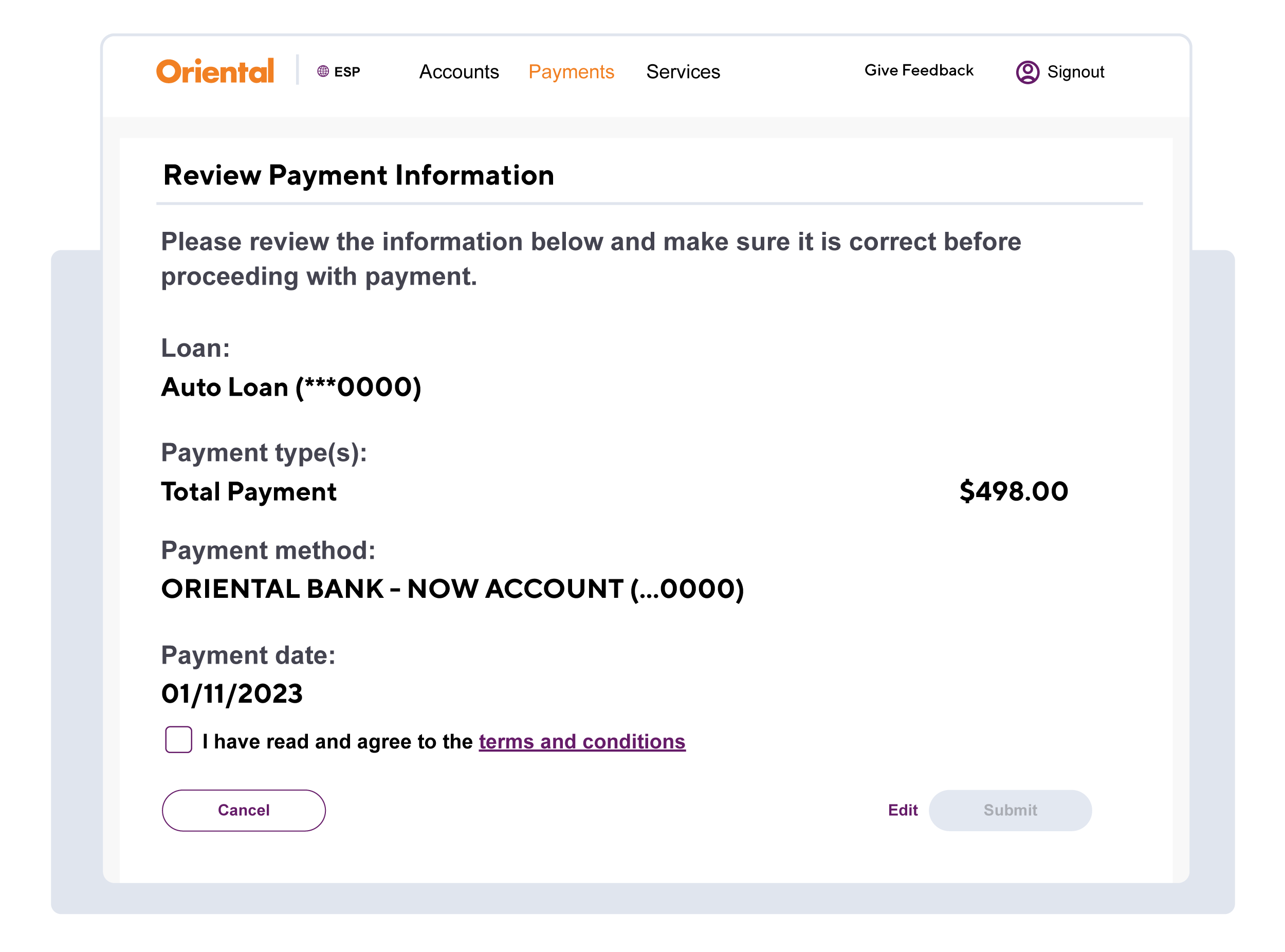
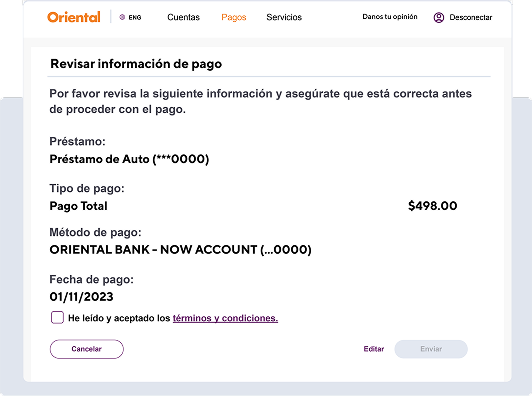
Once you complete the information on the "Make a payment" screen, you must review the information and accept the terms and conditions. If there is any incorrect information you can press "Edit" and change the information. If the information is correct press "Submit".
If the payment is successful, you will see your confirmation, receive a receipt by email, and can download it instantly.
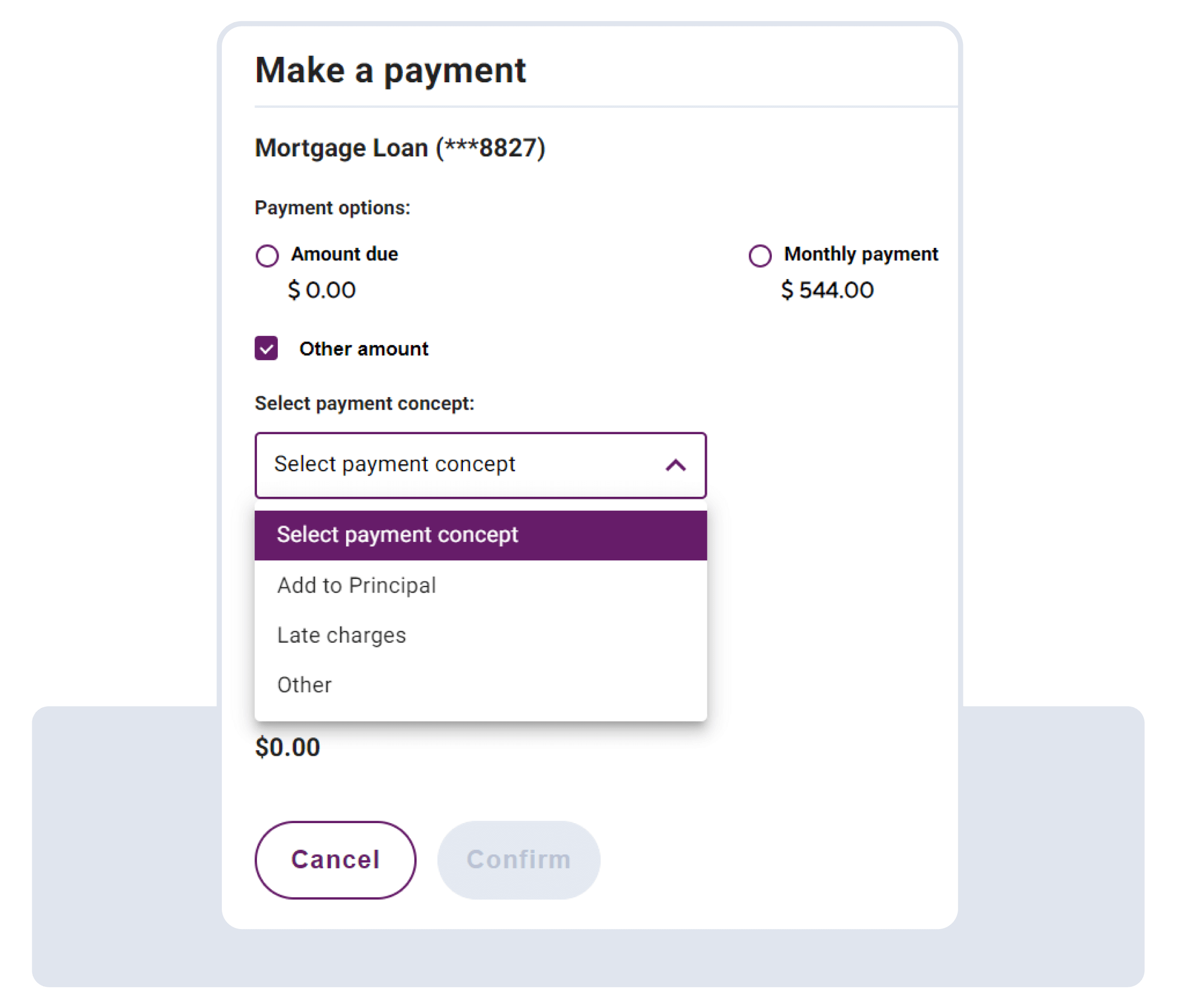
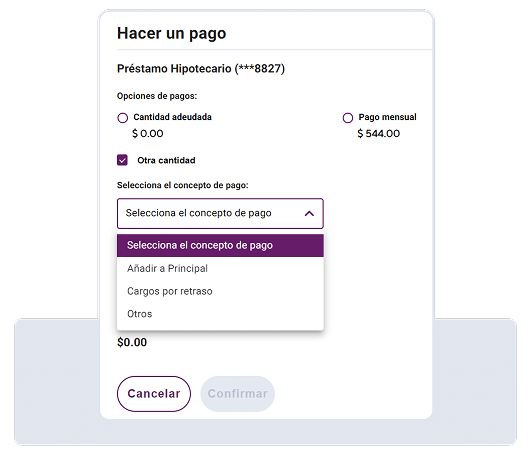
- On the “My Payments” section, select the loan for which you want to make a principal payment to the principal balance.
- Under “Other Amount”, select “Add to Principal” and enter the amount you want to pay.
- Select your preferred payment method and click “Confirm”.
- On the next screen, choose the email address in which you want to receive an electronic confirmation of the payment.
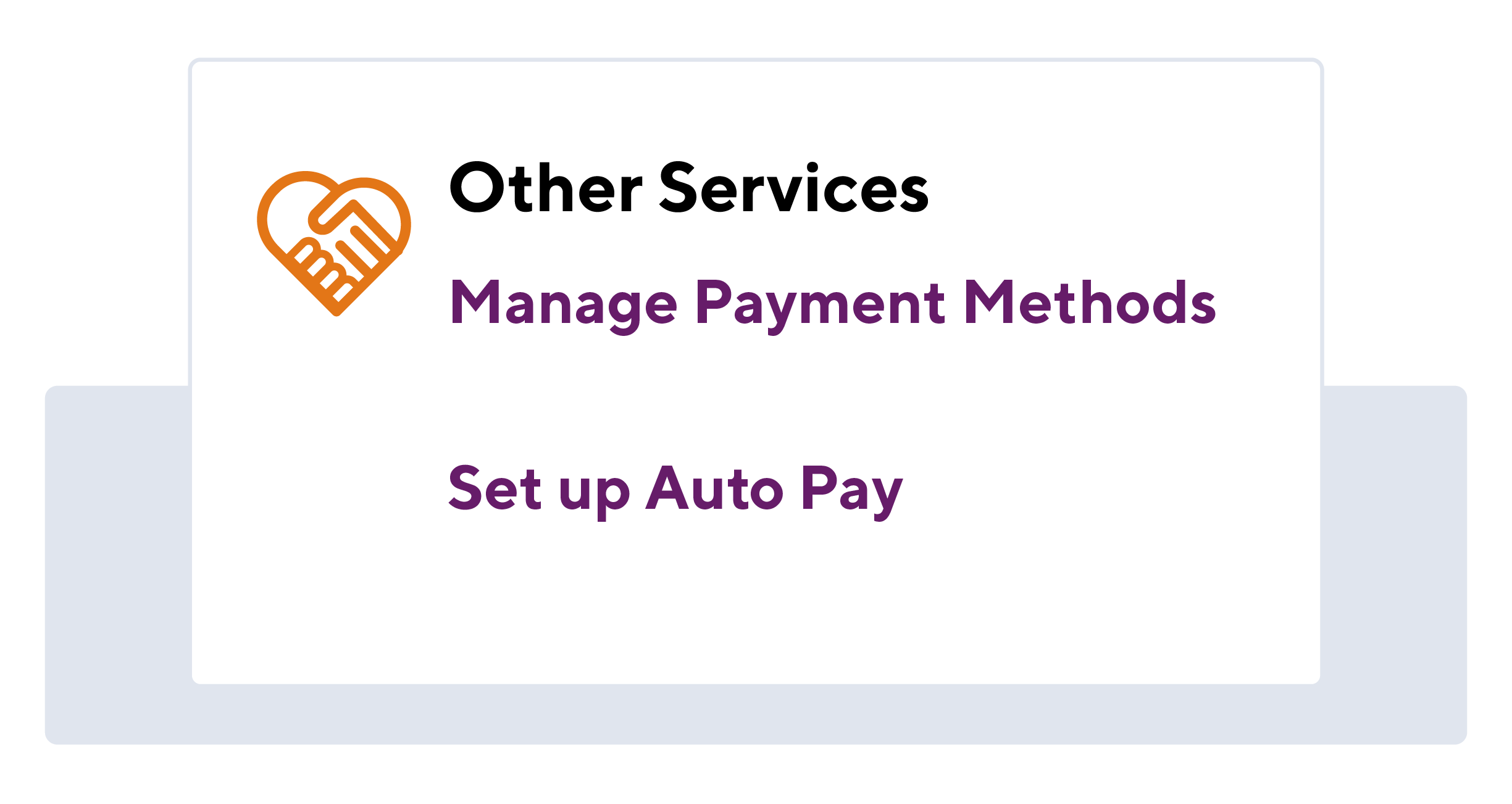
Add payment methods and set your preferred payment method. These may include Oriental accounts, other bank accounts, debit cards or credit cards from other banks. Depending on your selection, the required fields to be completed will be displayed.
Add your accounts from other banks, credit cards or debit cards and then complete the required information on the following screens.
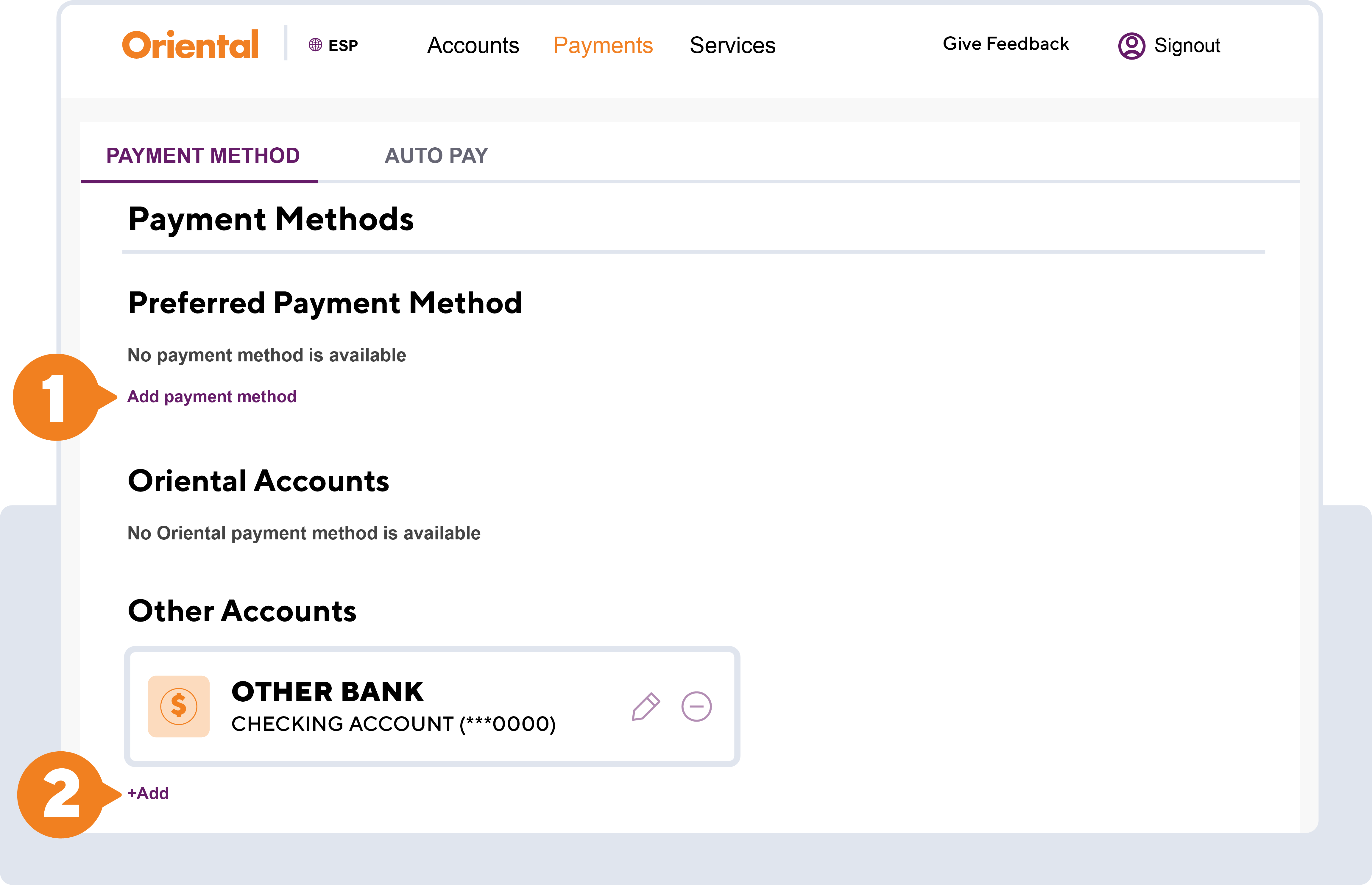
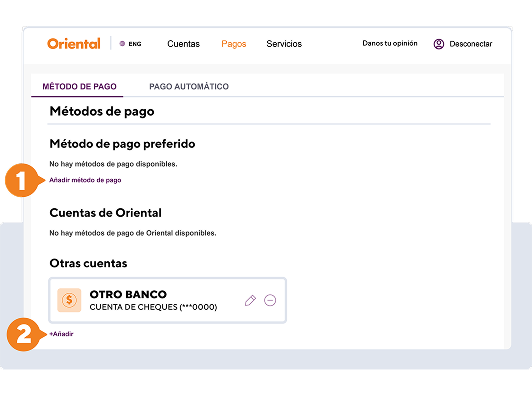
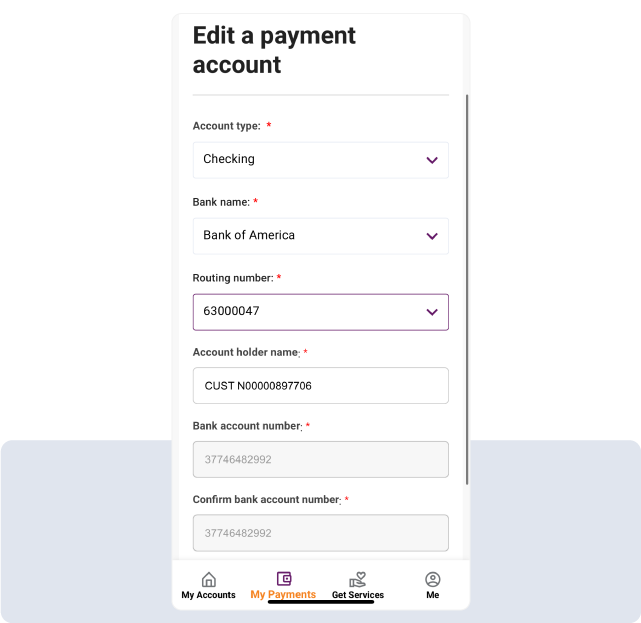
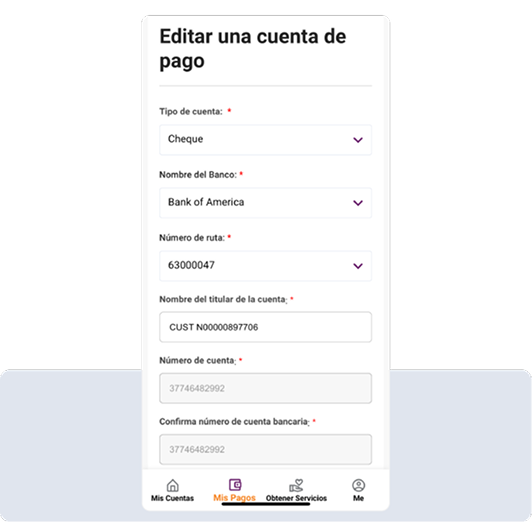
Edit External Accounts
- In the My Payments section, select "Manage payment methods". You can also access it after selecting "My Payments" in the "Payment Settings" box by selecting "Manage Payment Methods".
- In the "Payment Methods" section, under "Other Accounts" each account saved in your profile will have the options to edit or delete it.
- The "Edit an external account" option allows you to modify the deposit and card accounts in your profile. After completing the required fields, click "Update".
- Please note that these changes will update the accounts configured for your payment methods and external transfers across all Oriental Online Services (Service Portal, Online Banking, and Mobile Banking). If you do not want this account to be used for a configured Direct Payment, you must go to the Direct Payment section to make the changes in settings. Once you have read this message and agree with the information you can click "Confirm" and the changes will be saved.
Delete External Accounts
- The "Delete an external account" option allows you to permanently delete the accounts you do not wish to have associated with your payment methods. After selecting the account you want to remove, a confirmation message will appear. Click "Delete" and your profile will be updated.
- It is important to remember that to edit or delete an external account you must make sure it is not part of your preferred payment methods. If so, you must edit it first.
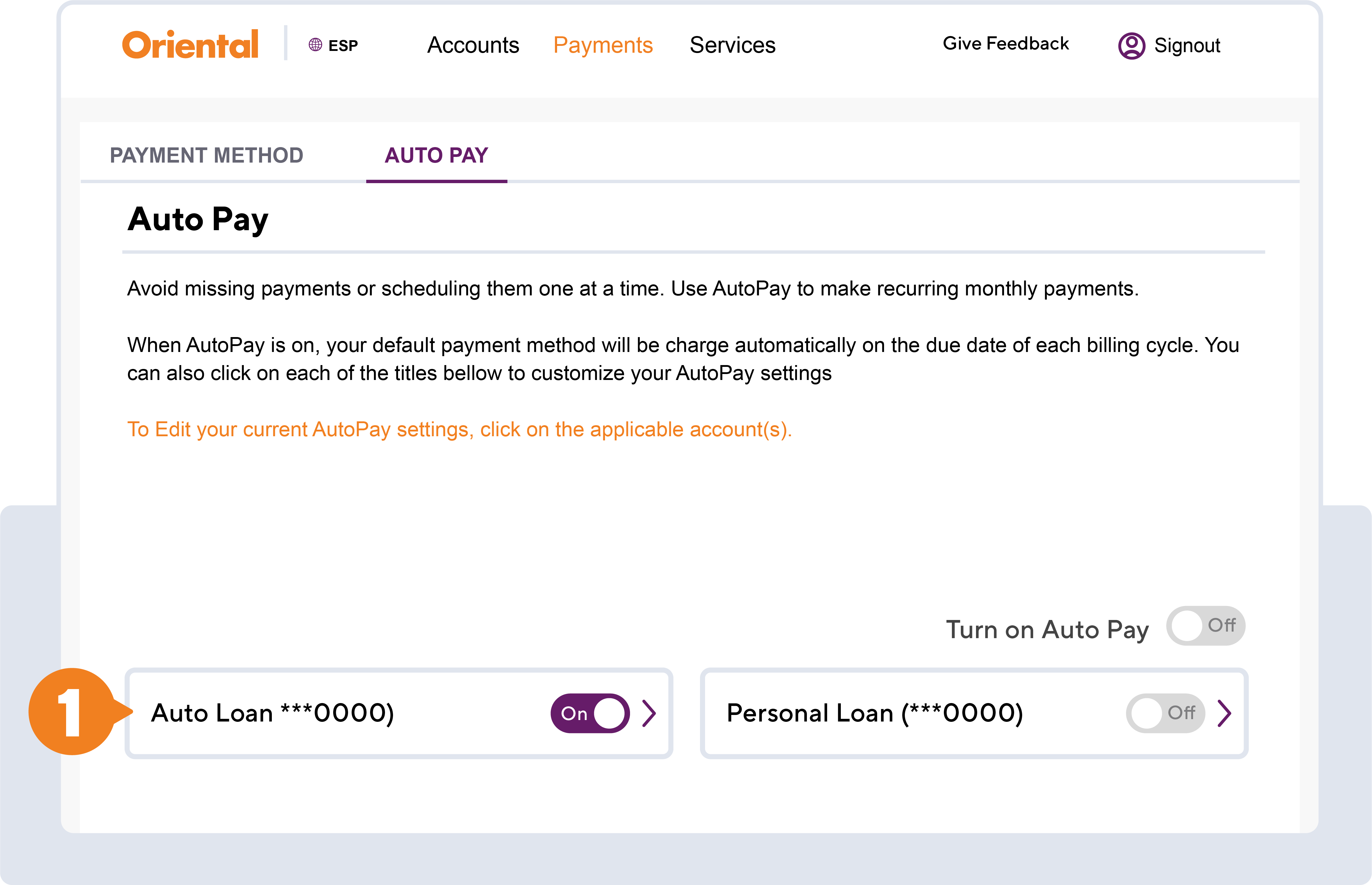
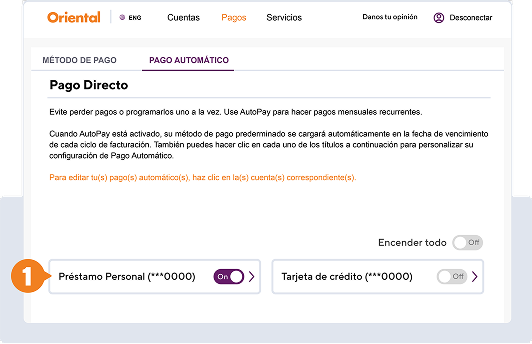
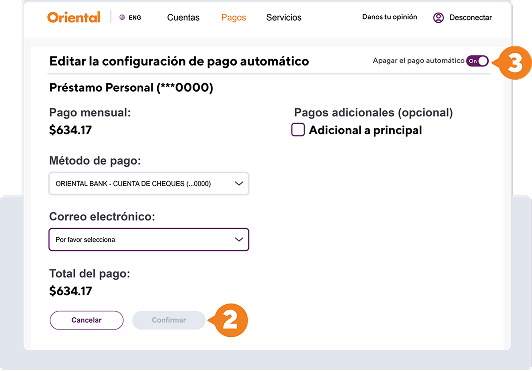
You can set up, edit or remove Auto Pay for your accounts (service not available for credit cards). To schedule automatic payment, the account cannot be more than 30 days past due.
- Choose the account for which you want to set up Auto Pay.
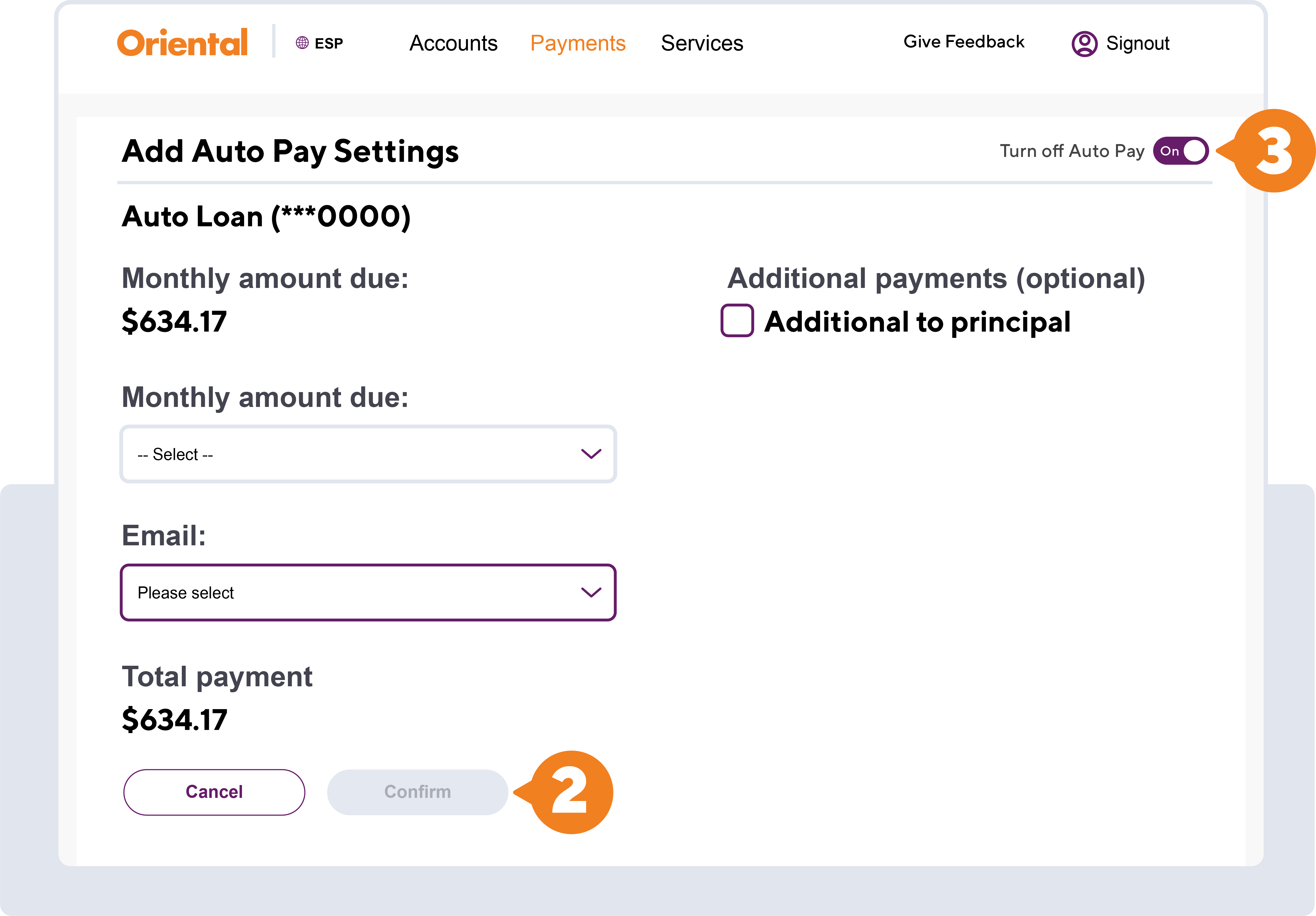
- To establish or edit the automatic payment, choose the payment method, if you want to add it to the main one and the email address where you would like to receive confirmation and press "Continue".
- To remove Auto Pay, select the option to the right that says “Turn off Auto Pay”.
Use the Service Portal to request payoff letters for your loans quickly and easily.
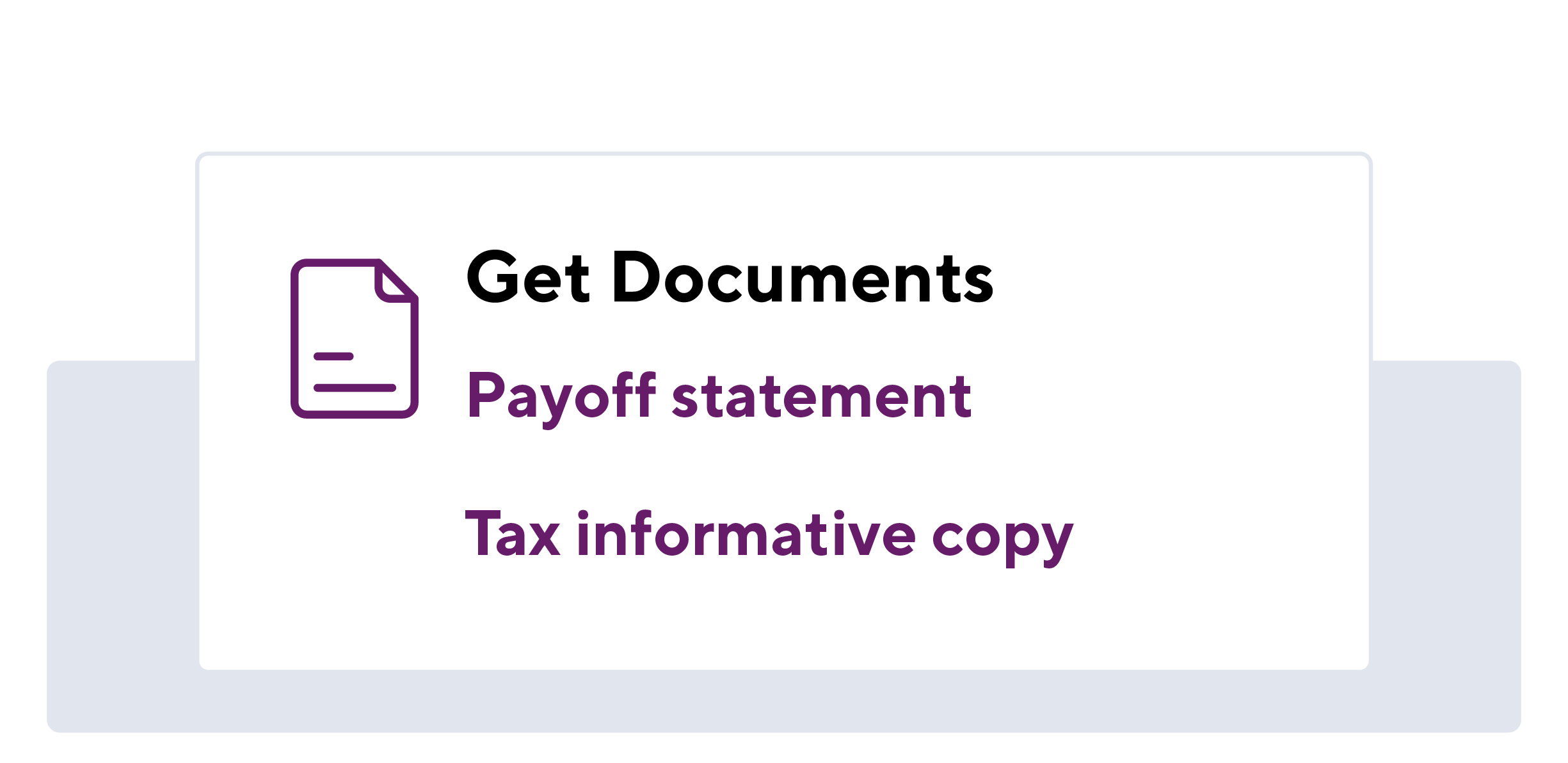
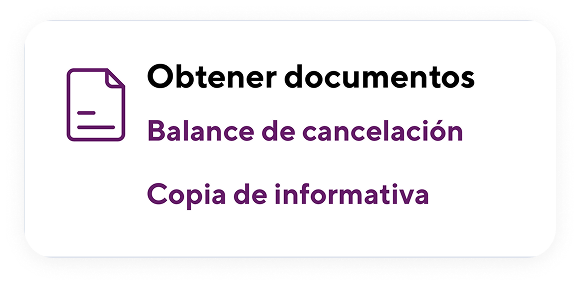
Under the Get Documents section, select “Payoff letter”, "Account Certification" or “Loan Certification” to generate the document or submit a request. On the next screen, fill in the required information. You will receive confirmation of your document by email.
You can also request a copy of your tax document. Go to the Get Services section and select "Copy of information". Choose the tax year and click on the download icon. If you need a correction or cannot find your tax return under "More options" you can create a service request and we will assist you.
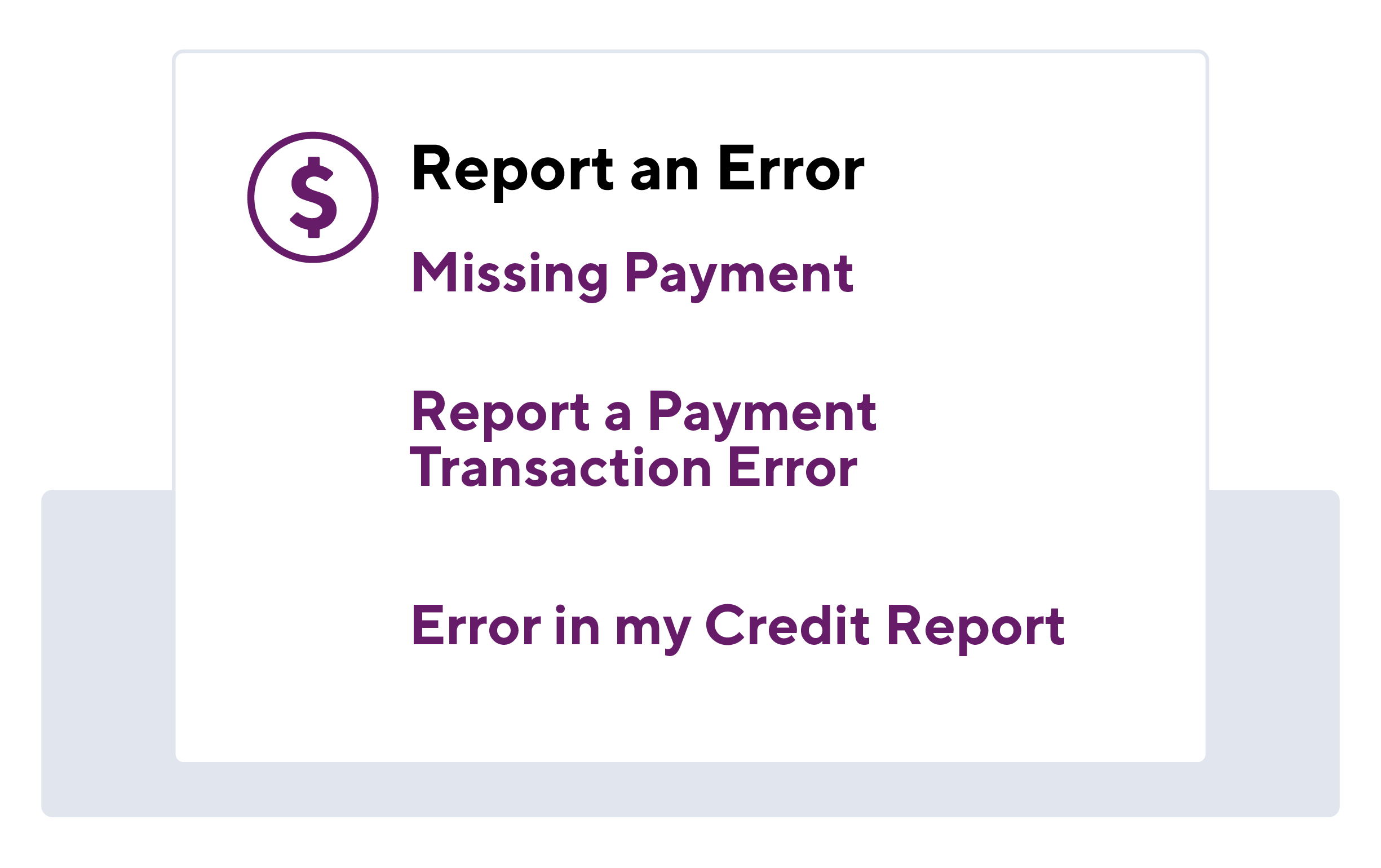
- "In the Report an Error section", choose one of the following: Missing Payment, Report a Payment Transaction Error or Error on my Credit Report.
- On the next screen, complete the required fields and submit your claim.
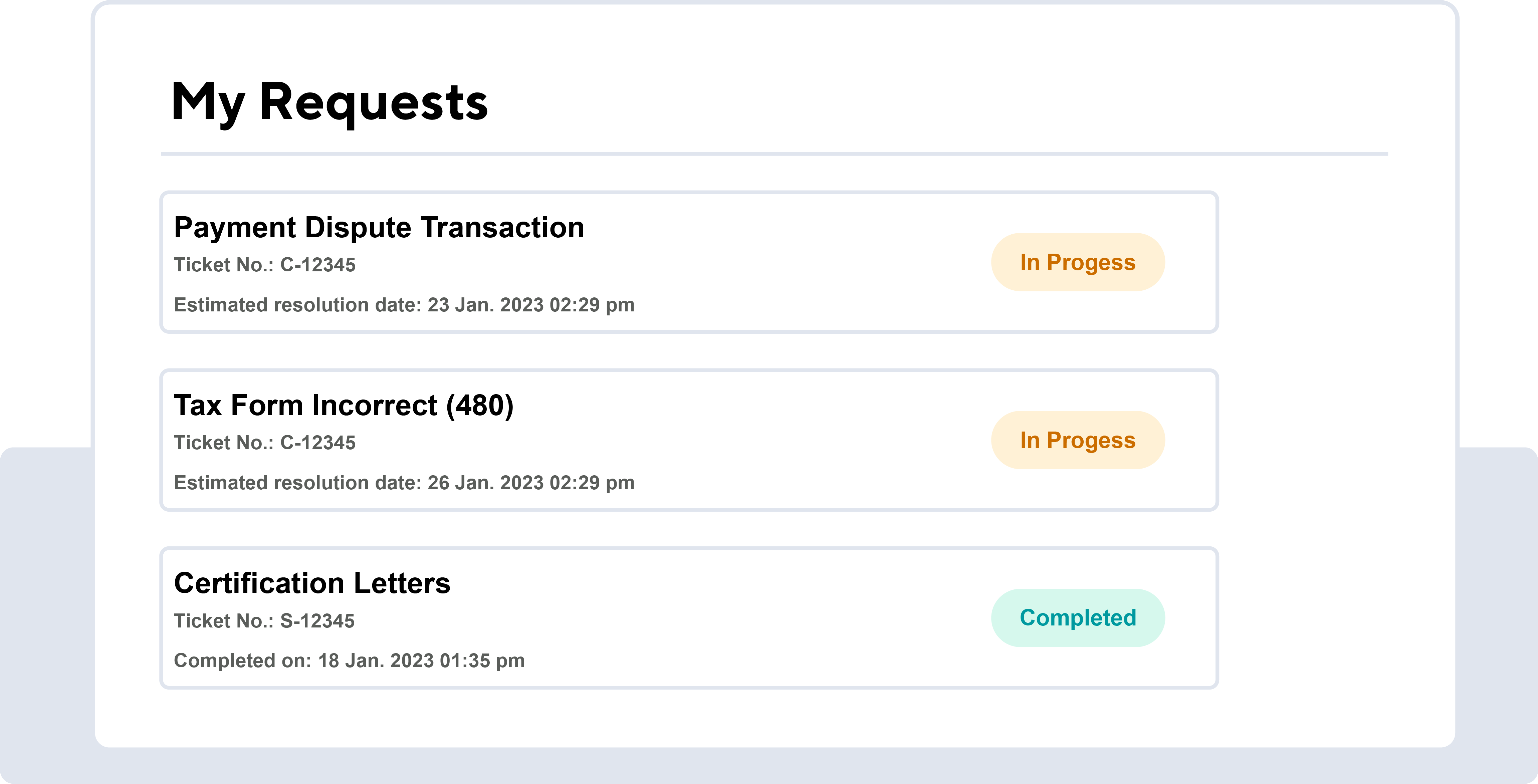
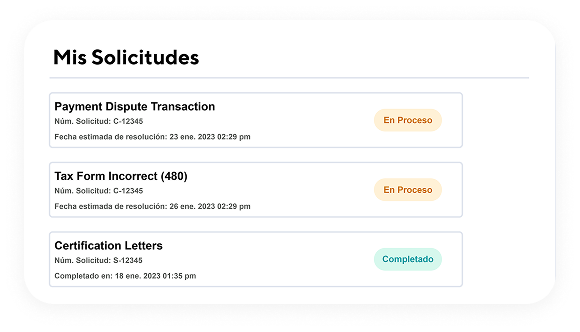
- Your claim will be submitted to the system. Check the status of your claim in the My Requests section.

Mandatory Disclosures
Certain terms, conditions and restrictions apply.
(1) Payment will not appear in your account details immediately, but Oriental Bank will credit your account on the same business day it is sent, provided it is received no later than 7:00 p.m. AST. Payments received after 7:00 p.m. AST will be processed the next business day.
(2) The bank account must be held at a bank in Puerto Rico, United States or United States Virgin Islands (USVI) bank.
(3) Response time may vary depending on the service or claim requested, but will never exceed the resolution levels required by regulatory agencies. The service level begins to count once you have submitted the service request or claim with all the required information.
Credit products are not guaranteed or insured by the FDIC. Oriental Bank, Member FDIC.